Help Center
Getting Started
Core Features
Payments & Analytics
Settings
Team & Scheduling
Integrations
White-Label
Team & Scheduling
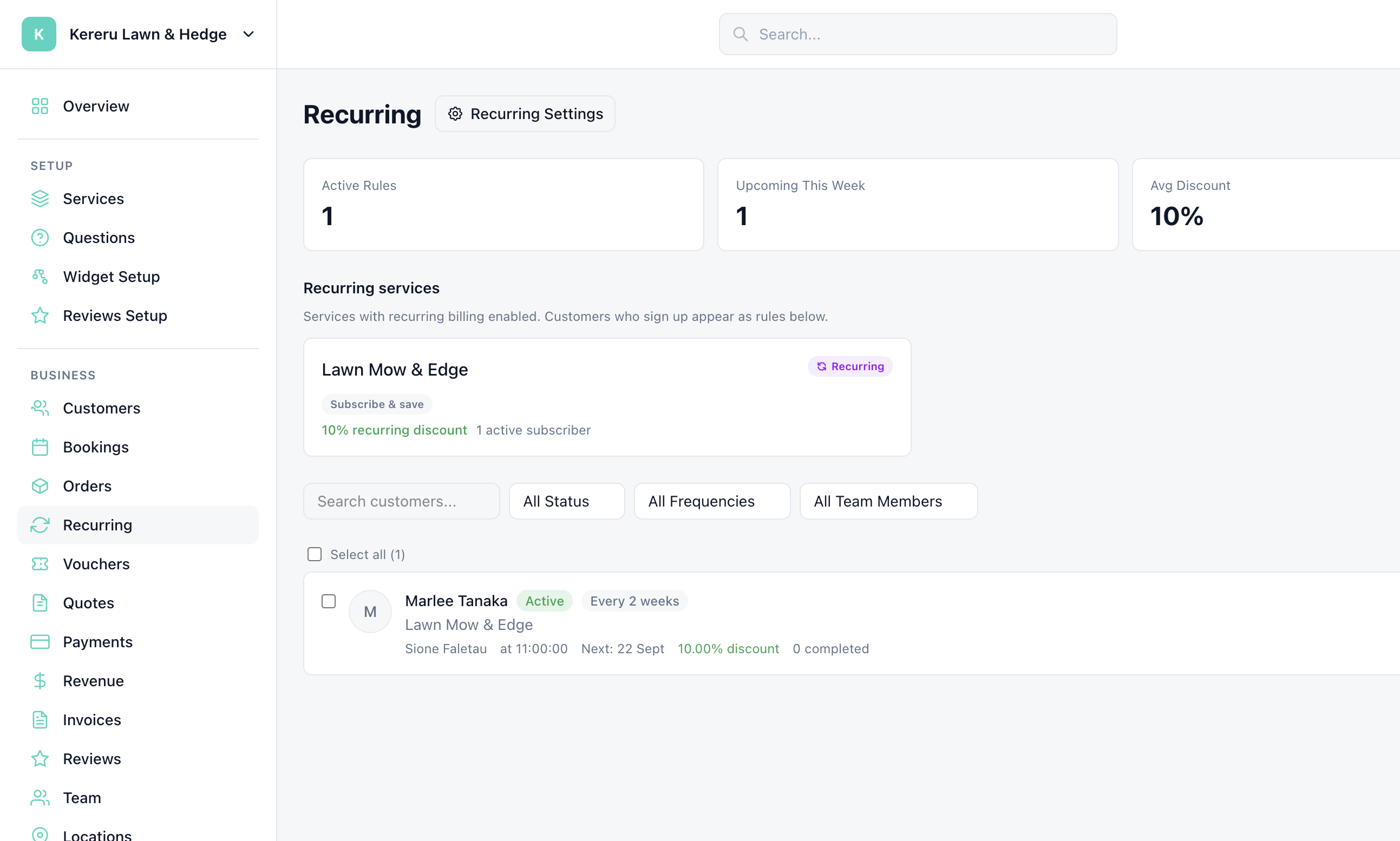
Recurring Bookings
Set up weekly, biweekly, and monthly recurring booking schedules.
Recurring bookings are available on Pro plans and above. Manage at Recurring.
Creating a Recurring Rule
Start from a booking or customer
From any booking detail or customer profile, click "Set Up Recurring".
Choose frequency
Select weekly, biweekly, monthly, or a custom interval in days.
Set schedule
Pick the day of the week, preferred time, and the service.
Activate
Save the rule. The system automatically generates bookings on schedule.
Frequency Options
| Frequency | Schedule |
|---|---|
| Weekly | Same day and time every week |
| Biweekly | Every two weeks |
| Monthly | Same day of the month (or closest business day) |
| Custom | Set a specific interval in days (e.g. every 10 days) |
Managing Recurring Rules
View all recurring rules at Recurring. From here you can:
Pause a rule temporarily (resume anytime)
Cancel a rule permanently
Edit a single occurrence without affecting the rest of the schedule
View the full history of generated bookings
Recurring Discounts
Offer a discount for recurring customers. The pricing engine automatically applies the recurring discount to all bookings generated by recurring rules. Set the discount percentage in your service pricing configuration.
How Recurring Discounts Stack
Recurring discounts are applied after the base or seasonal price, price variables and add-ons, and before a price cap. They reduce the total by the percentage you set.
Still have questions? Contact support