Help Center
Getting Started
Core Features
Payments & Analytics
Settings
Team & Scheduling
Integrations
White-Label
Core Features
Quotes & Invoices
Create and send quotes, convert to bookings, generate and manage invoices.
Creating Quotes
Create quotes from Quotes using + Create Quote. Select a customer, add services and add-ons, and optionally adjust the price. The customer receives an email with a link to view and accept the quote.
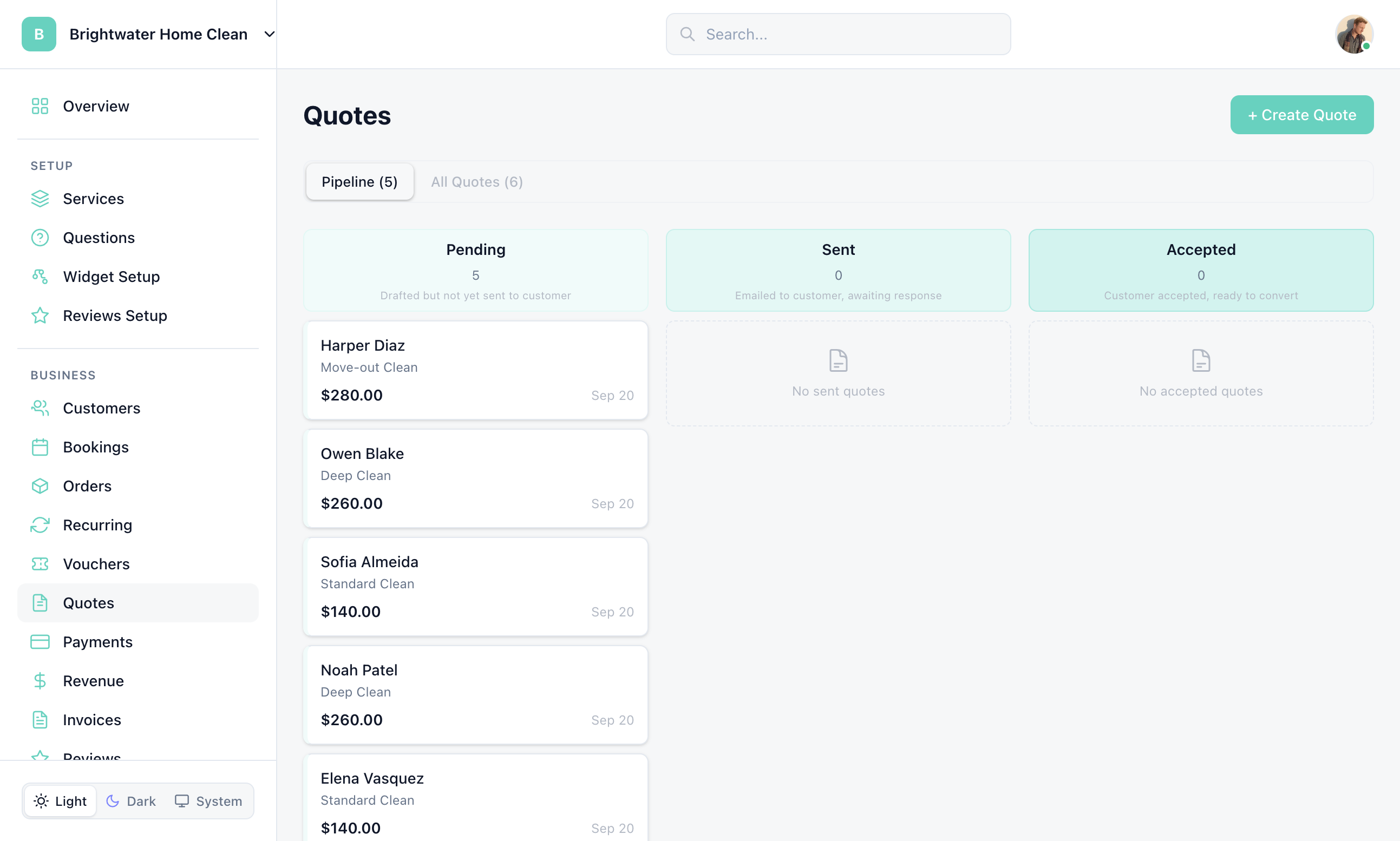
Click + Create Quote
Go to Quotes and click + Create Quote.
Select customer
Choose an existing customer or create a new one.
Add line items
Add services, add-ons, and adjust pricing as needed.
Send
Click "Send" to email the quote. Or save as draft to send later.
Quote Statuses
| Status | Meaning |
|---|---|
| Pending | Quote created but not yet sent |
| Sent | Quote emailed to the customer, awaiting response |
| Accepted | Customer accepted the quote |
| Declined | Customer declined the quote |
| Expired | Quote passed its expiration date without response |
| Converted | Quote has been converted into a booking |
Quote to Booking
When a customer accepts a quote, you can convert it to a booking. They select a date/time and pay the deposit online. The quote status changes to "Converted".
Invoices
Manage invoices at Invoices. Invoices can be created manually, generated automatically when a booking is completed (if auto-invoicing is enabled), or generated by recurring billing rules.
Invoice Statuses
| Status | Meaning |
|---|---|
| Draft | Invoice created, not yet sent |
| Sent | Invoice emailed to customer with payment link |
| Viewed | Customer opened the invoice (tracked automatically) |
| Paid | Full payment received |
| Overdue | Past due date with outstanding balance |
| Cancelled | Invoice cancelled by business |
| Void | Invoice voided and no longer valid |
Payment Tracking
Track deposits, partial payments, and balance due across all invoices. Each invoice page shows a complete payment timeline with amounts and dates.
Still have questions? Contact support