Help Center
Getting Started
Core Features
Payments & Analytics
Settings
Team & Scheduling
Integrations
Core Features
Capacity and Shared Capacity
Set how many bookings you can take at once, and make services that use the same space share one total.
Open Services, choose a service, and go to Capacity. This is where you say how many bookings you can take at the same time, and whether this service shares its places with another one.
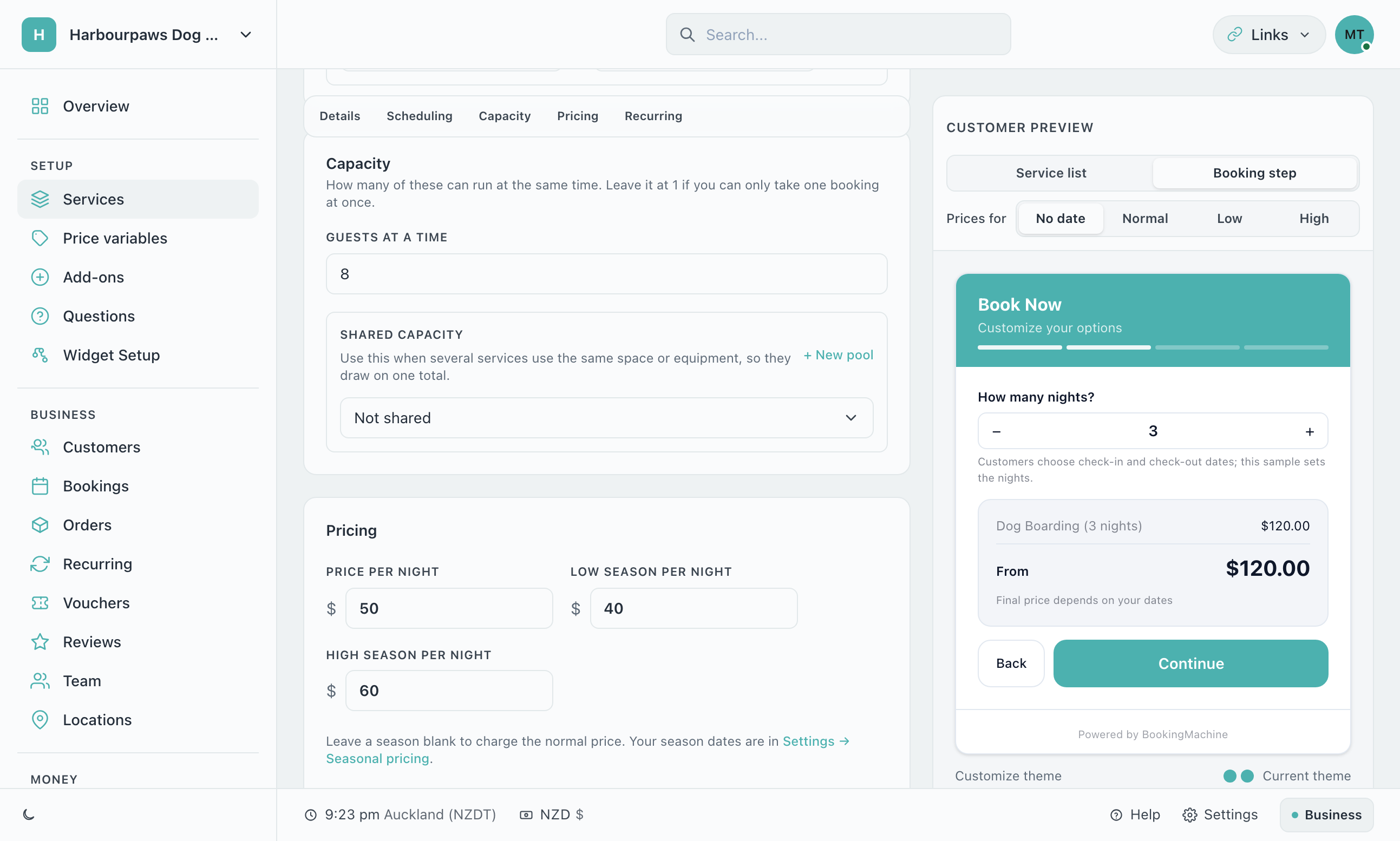
How many at a time
The number is labelled Guests at a time for a service sold by the night or by the hour, and Bookings at a time for a service sold by appointment. Once that many bookings overlap, the time is no longer offered to customers.
What counts towards the number depends on how the service is set up.
| The service is | What fills it |
|---|---|
| Set to 1, sold by appointment or by the hour | Any booking you have at that time, whichever service it is for. One booking means you are busy. |
| Set to 1, sold by the night | Its own stays only, unless the stay switch on the service says otherwise. |
| Set to 2 or more | Its own bookings only. Your other services are not counted. |
| In a shared capacity pool | The bookings of every service in the pool, counted together. |
Shared capacity
A pool is one total that several services draw on. A kennel with eight pens might sell Dog Boarding by the night and Doggy Daycare by the hour. A dog takes a pen either way, so both services share a pool of 8.
Create the pool
On the first service, open Capacity and click + New pool. Give it a name you will recognise, such as Kennel pens, enter how many you have, and click Create.
Save the service
Click Save. The service now uses the pool’s number in place of its own.
Add your other services
Open each service that uses the same space, choose the pool under Shared capacity, and click Save.
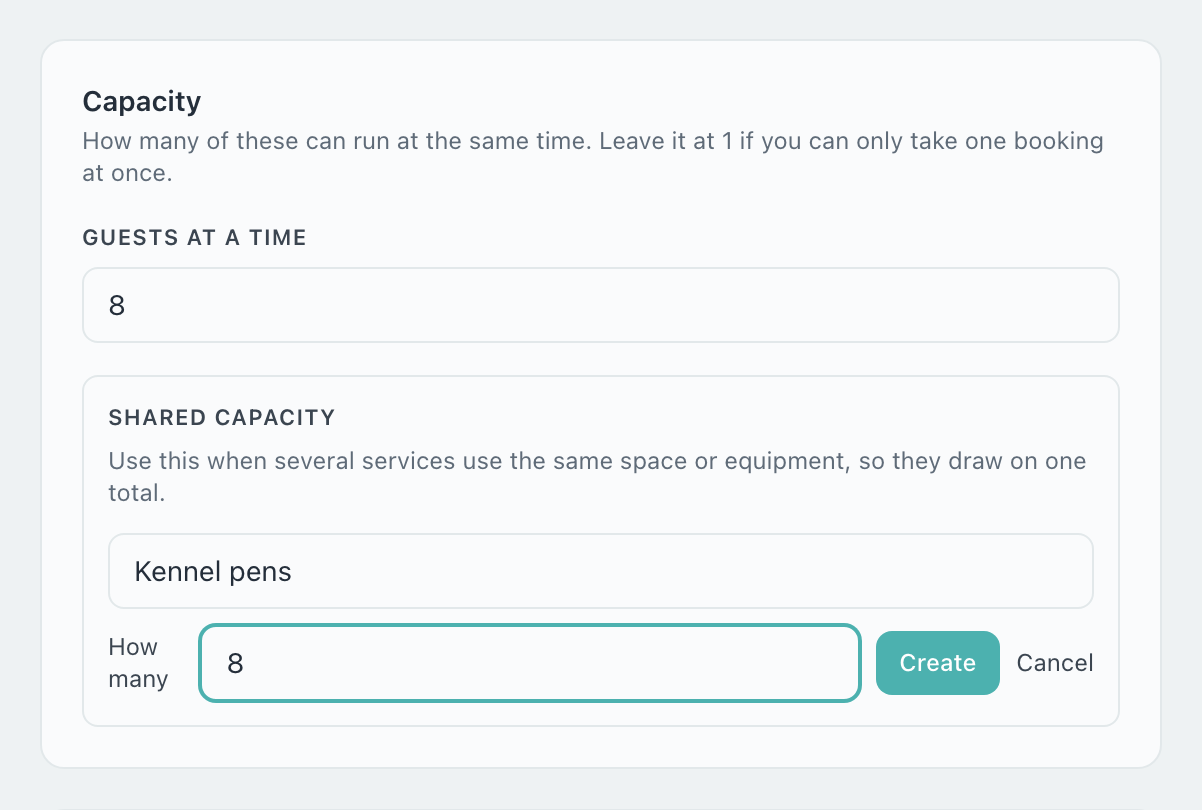
Once a service is in a pool, its own number is hidden and the pool’s number is the only one that applies.
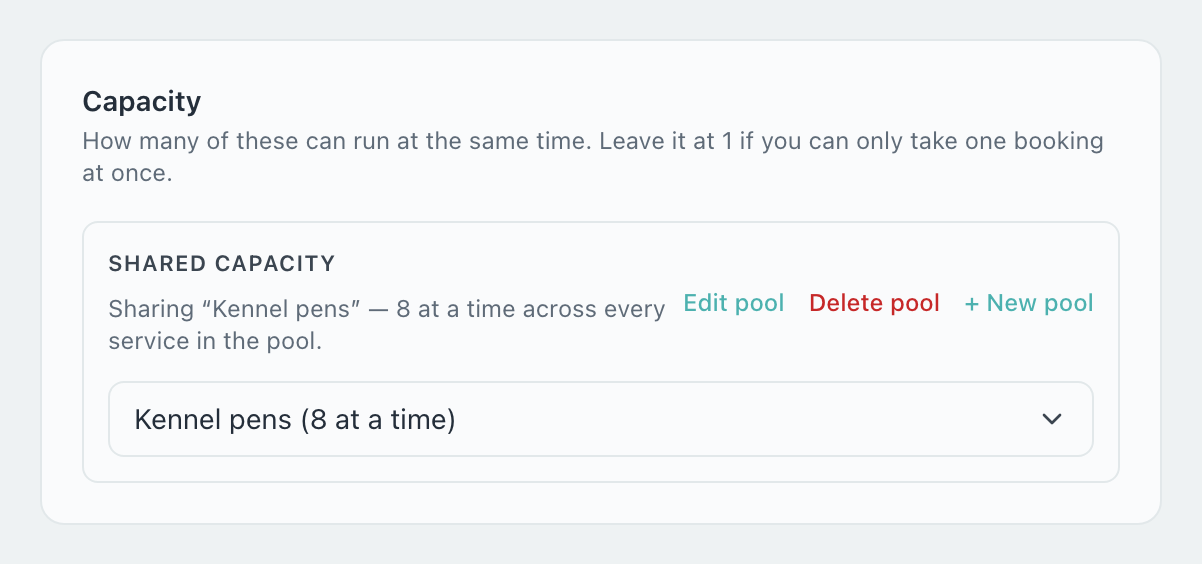
Bookings you already have are counted straight away. There is nothing to move or re-save.
Changing or deleting a pool
Open any service in the pool and go to Capacity. Edit pool changes its name or how many it holds, and Delete pool removes it. Both apply straight away to every service in the pool, without clicking Save.
Lowering the number keeps the bookings you already have. No new ones are taken until you are back under it.
Deleting a pool sends each service back to its own number, which you are shown before you confirm. That number is often still 1, so check it afterwards.
What your customers see
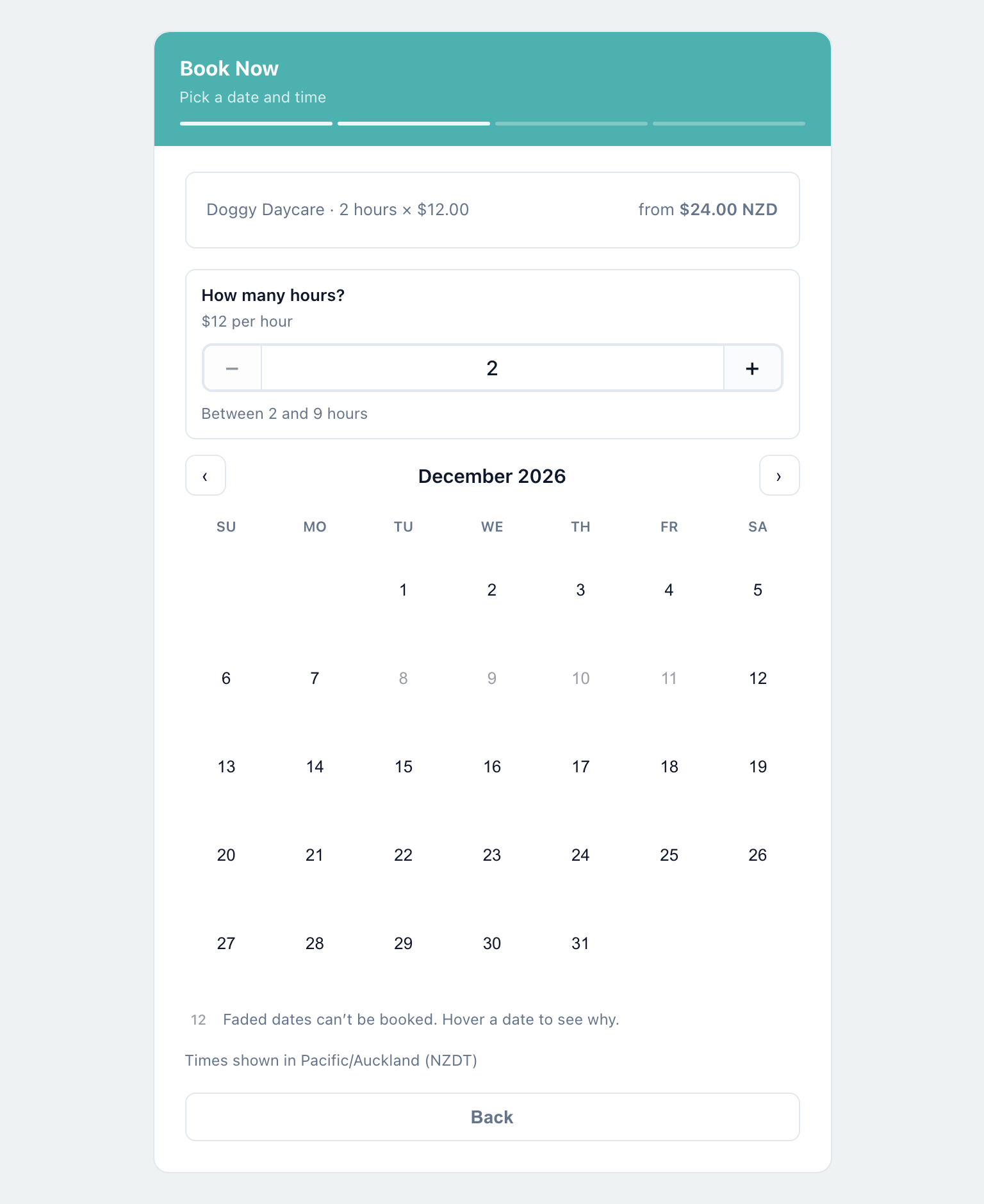
Dates with no place left are faded on the booking calendar and cannot be chosen. In this example every pen is taken by boarding stays from 7 to 12 December, so Doggy Daycare cannot be booked on the days in between, even though the bookings were made under a different service.
Common setups
One space, sold as more than one service
You board one family’s dogs at a time and sell it as two services, Dog Boarding and Dog Boarding - 2 Dogs, each with its own price. Left as they are, a stay booked under one leaves the other open for the same dates. Create a pool of 1 and put both services in it. A stay booked under either one then takes the dates off sale for both.
Stays and hourly bookings in the same space
Put the boarding and daycare services in one pool, set to the number of places you have. Every booking takes one place for as long as it lasts.
No daycare while a dog is boarding
Pool only the boarding services, and on each of them switch on While a stay is booked, I can’t take other bookings under Scheduling. Daycare then shows no times on days covered by a stay, and a daycare booking does not take a boarding place. See Selling by the Night and by the Hour for more about the switch.
Changeover days
A stay holds its place until the end of your check-out window on its last day. If guests can check in before then, a guest leaving and a guest arriving on the same day each need a place. With one place, that day shows as full, and the service editor tells you so.
There are two ways to let a new guest arrive on the day another leaves:
Set the times apart. Give the service a check-in window that starts after the check-out window ends, such as out by 11:00 and in from 16:00.
Count stays by night. Under Scheduling, tick A new guest can arrive on the day another leaves. Two stays then clash only when they share a night, whatever your check-in and check-out times are.
Things worth knowing
A booking counts for the service it is booked under. In a shared pool its bookings keep their place even after the service is paused or deleted. Bookings left on a deleted service that was not in a pool do not fill your other services: move them when you delete the service, or open the booking and change its service.
A booking made in the dashboard is checked in the same way, so you are told when a time is already full.
The Capacity section only appears on a service with a set length. A service with no date or duration has nothing to fill.
I am fully booked, so why does the date still show as available?
Usually because the booking is under one service and the customer is looking at another, and the two keep separate counts. Put the services that use the same space into one shared capacity pool. If your form starts with the calendar, remember the first calendar shows a day as free while any service has room.
Can a service be in more than one pool?
No. A service is either counted on its own or belongs to one pool.
How do I change how many a pool holds?
Open any service in the pool, go to Capacity, click Edit pool and change the number. Bookings you already have are kept.
How do I stop sharing?
For one service, open it, set Shared capacity to Not shared, and click Save. It goes back to its own number. To stop sharing for every service at once, click Delete pool.
Why can nobody check in on the day another guest leaves?
The place is held until the end of your check-out window, and your check-in times start before then. Tick A new guest can arrive on the day another leaves on the service, or set a check-in window that starts after check-out ends.
Does shared capacity limit my team as well?
No. A pool counts places, not people. Eight dogs in eight pens do not need eight members of staff, so pooled bookings are not counted against your team’s time.
Still have questions? Contact support