Help Center
Getting Started
Core Features
Payments & Analytics
Settings
Team & Scheduling
Integrations
White-Label
White-Label
Email Domain Setup
Send customer email from your own domain. Pro and above.
Open Settings > Email Domain to send customer email from your own domain. Until the badge says Verified, mail still comes from BookingMachine ([email protected]). This is included on Pro and above.
Open Email Domain
Go to Settings > Email Domain. The heading on the form is Add your email domain.
Enter Domain, From Name, and From Address
Domain is the root domain you already use for email, such as dcblack.co.uk. Do not type book. or www. here. Those names belong on Settings > Custom Domain. From Name is the display name. From Address (before @) is bookings, help, hello, or noreply. The preview says Emails will be sent as.
Click Add Email Domain
The DNS Records table appears straight away. Add every row. Copy the values from your page. Do not reuse another domain's values.
Click Verify DNS Records
The badge stays DNS Pending until the provider confirms the records. Reload the page to read the current status. Verified shows Domain verified and active.
DNS records
The page heading is Custom Email Domain. Host names are relative to your domain. On dcblack.co.uk, send means send.dcblack.co.uk. Columns are Type, Host / Name, Value, Priority, and Status. Priority is filled in on the MX row. Status stays pending until that row checks out. The screenshot is dcblack.co.uk. Copy the rows on your own page.
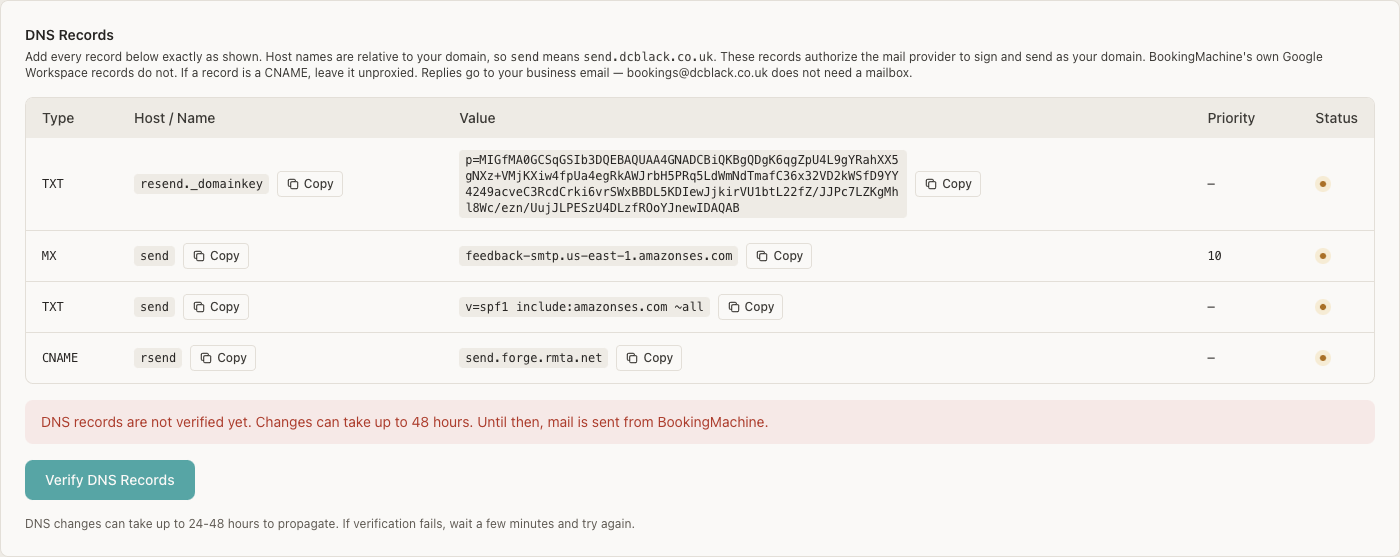
| Type | Host / Name | What to add |
|---|---|---|
| TXT | resend._domainkey | DKIM. Paste the long value from your page. Do not type a key from this article. |
| MX | send | Return path. Priority is on the page (10 in this example). The target is on the page too. |
| TXT | send | SPF for the send host. The value is on the page, for example v=spf1 include:amazonses.com ~all. |
| CNAME | rsend | Leave this unproxied (DNS only). The target is on the page. |
Cloudflare
Open DNS > Records and click Add record for each row. Type is TXT, MX, or CNAME as shown. Name is the short host (send, resend._domainkey, or rsend), not the full name, because Cloudflare adds the domain. For a CNAME, set Proxy status to DNS only (grey cloud) before Save. TXT and MX are already DNS only.
The address you send from, such as [email protected], does not need a mailbox. Replies go to the Business Email on Settings > General.
Verification
Click Verify DNS Records after the records are saved at your DNS host. The button label while it runs is Verifying.... A domain that is not confirmed yet shows DNS Pending, and the note says mail is still sent from BookingMachine. DNS can take up to 24-48 hours. Reloading the Email Domain page reads the provider's current status.
When it is confirmed, the badge is Verified and the banner says Domain verified and active. Booking confirmations, reminders, invoices, and review requests then send as the From name and address on the page. Remove switches that mail back to BookingMachine.
BookingMachine's own messages, and every business without a verified domain, stay on [email protected]. A website address is separate. See Custom domain setup.
Will this take over my existing email?
No, if you only add the hosts on the Email Domain page. Those hosts are send, resend._domainkey, and rsend. Mail to [email protected] keeps using the MX records already on dcblack.co.uk.
The provider says verified, but BookingMachine still says DNS Pending.
Reload Settings > Email Domain. The page reads the provider's current status. The badge changes to Verified only after that status is verified. Until then, customer mail still comes from BookingMachine.
Where do replies go?
To the Business Email on Settings > General. [email protected] is a sending address, not an inbox.
Still have questions? Contact support