Help Center
Getting Started
Core Features
Payments & Analytics
Settings
Team & Scheduling
Integrations
Core Features
Seasonal Pricing
Charge a different price in your busy and quiet times of year.
Open Settings > Seasonal Pricing. Set the dates of your busy and quiet times of year once, then give each service a high-season and a low-season price. A booking on any other day is charged the normal price. Dates use your workspace timezone.
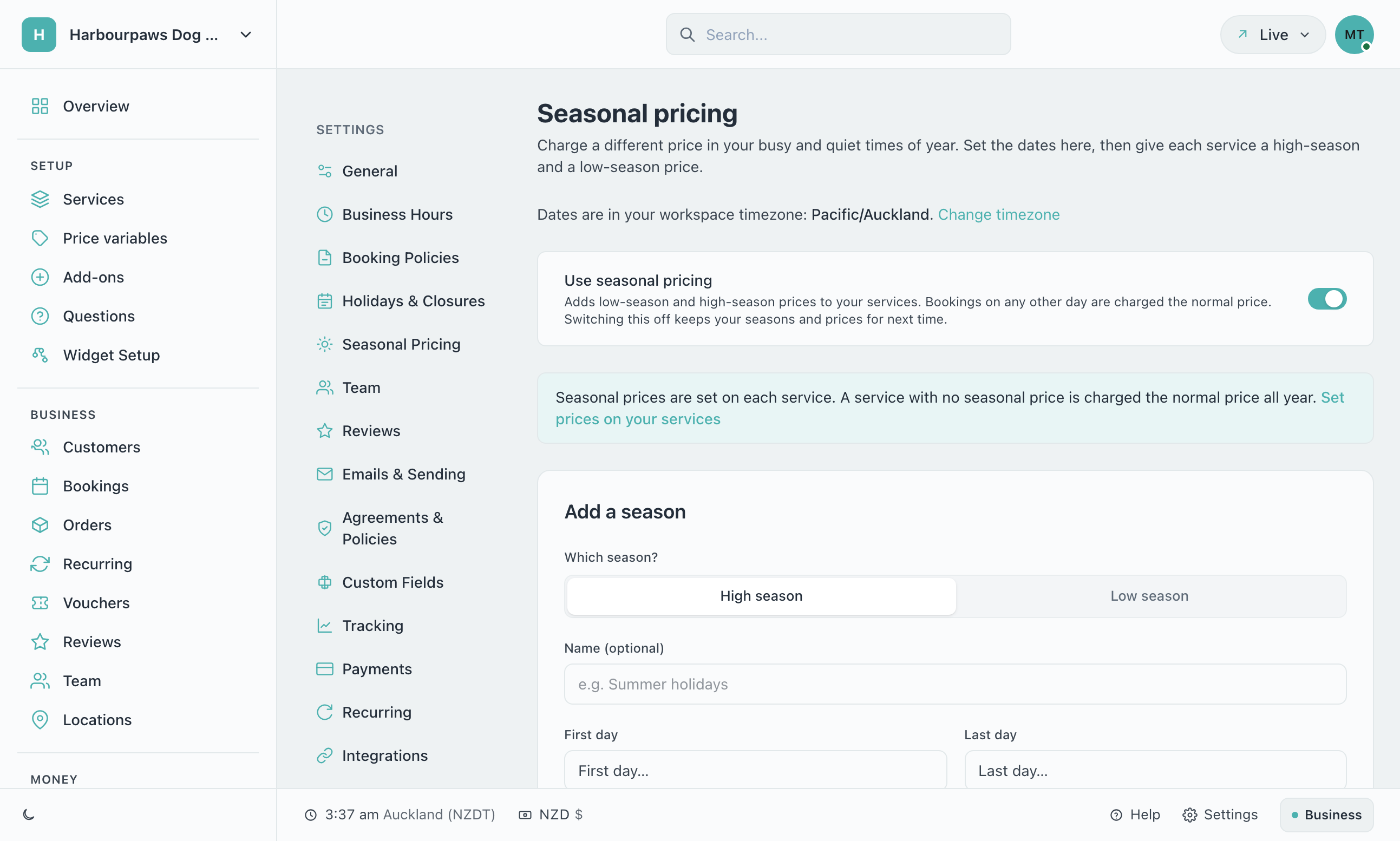
Switch it on
Turn on Use seasonal pricing. It saves straight away. Switching it off later keeps your seasons and prices for next time.
Add a season
Choose High season or Low season, give it a name if you like, and pick the First day and the Last day.
Choose whether it repeats
Leave Repeats every year ticked for the same days every year. Untick it for dates that move, like Easter or a school holiday.
Click Add season
The season appears under Your seasons, where you can Edit or Delete it.
Set prices on your services
Open Services, choose a service, and fill in Low season and High season in the Pricing section. Leave one blank to charge the normal price.
Adding a season
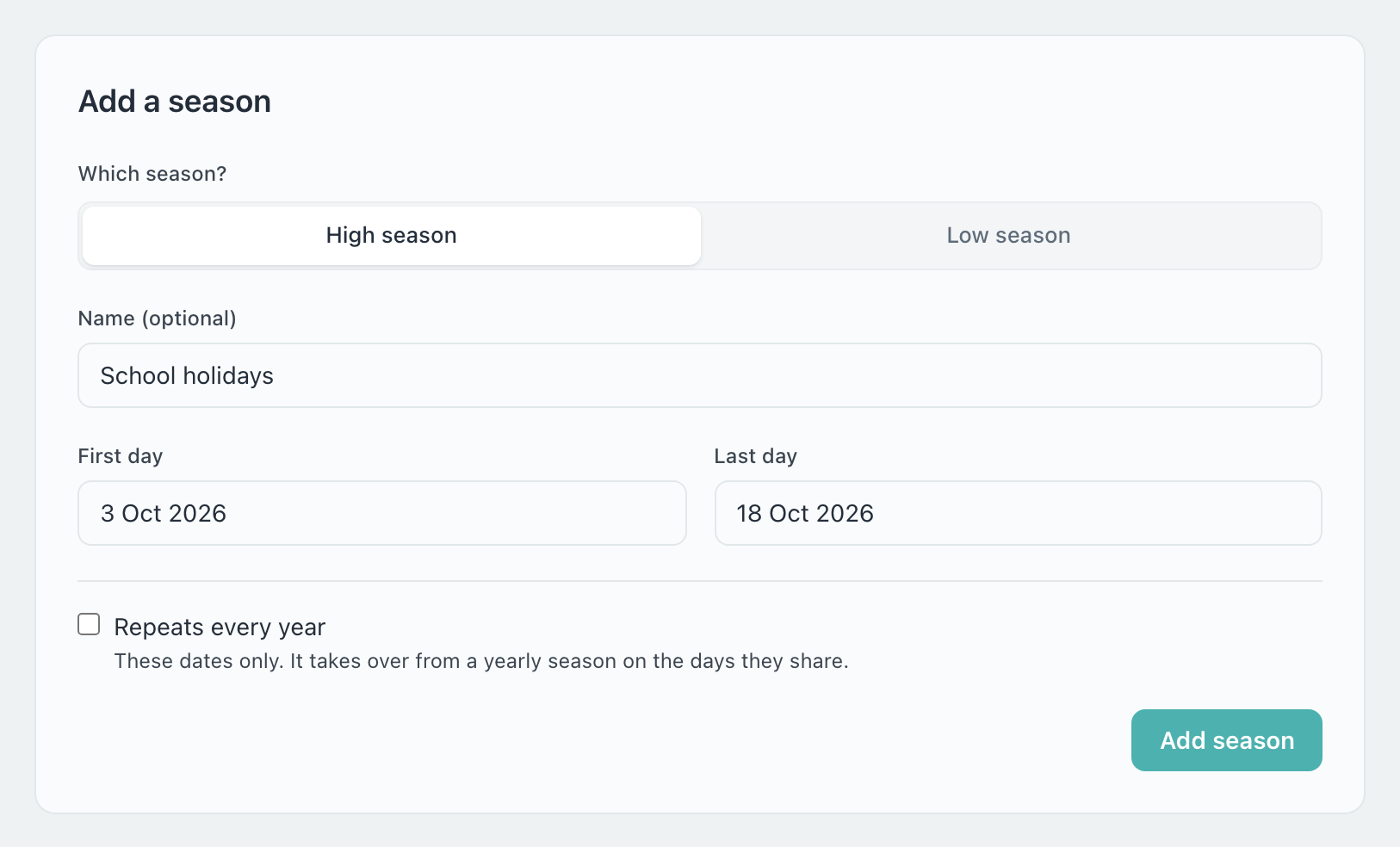
Which season? — High season for your busy times, Low season for your quiet ones.
Name (optional) — for your own reference, such as “Summer holidays”.
First day and Last day — both days are part of the season. A season can run over New Year.
Repeats every year — ticked, the season comes round on the same days every year. Unticked, it applies to those dates only.
Your seasons
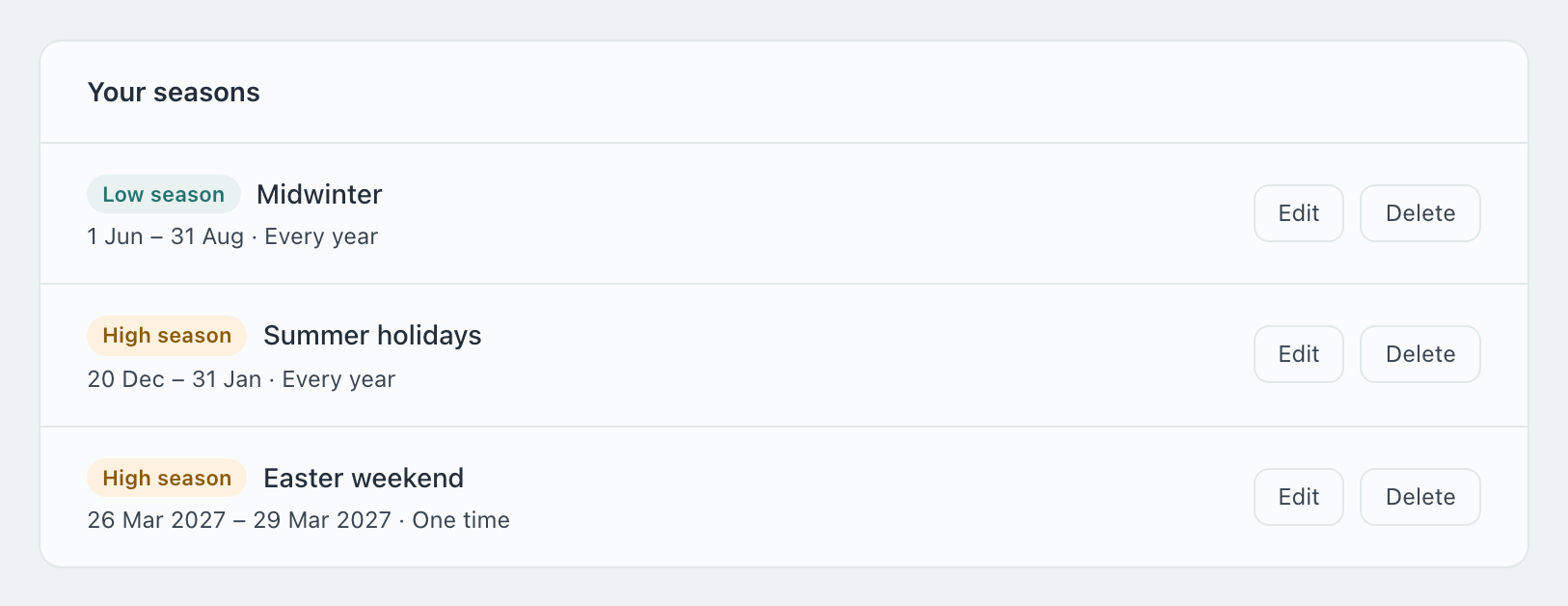
Each season shows whether it is high or low, its dates, and whether it runs Every year or One time. A one-off season whose dates have passed is marked Ended.
A day can only be in one season. Two yearly seasons cannot share a day, and neither can two one-off seasons.
A one-off season may sit on top of a yearly one. It takes over on the days they share, which is how you price one Easter differently from the rest of autumn.
A workspace can hold up to 24 seasons.
Prices on each service
While seasonal pricing is on, every service has a Low season and a High season price beside its normal price. Leave either blank and that season is charged the normal price.
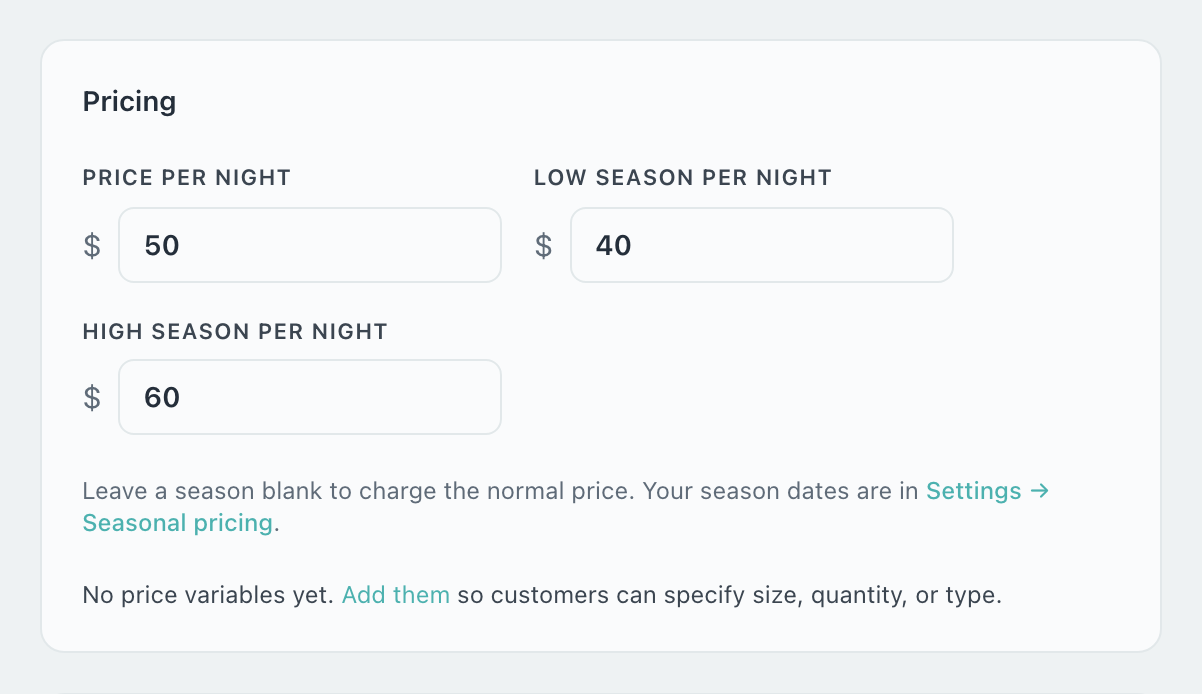
The Services list shows all three prices for each service, so you can see at a glance which ones still charge the normal price all year.
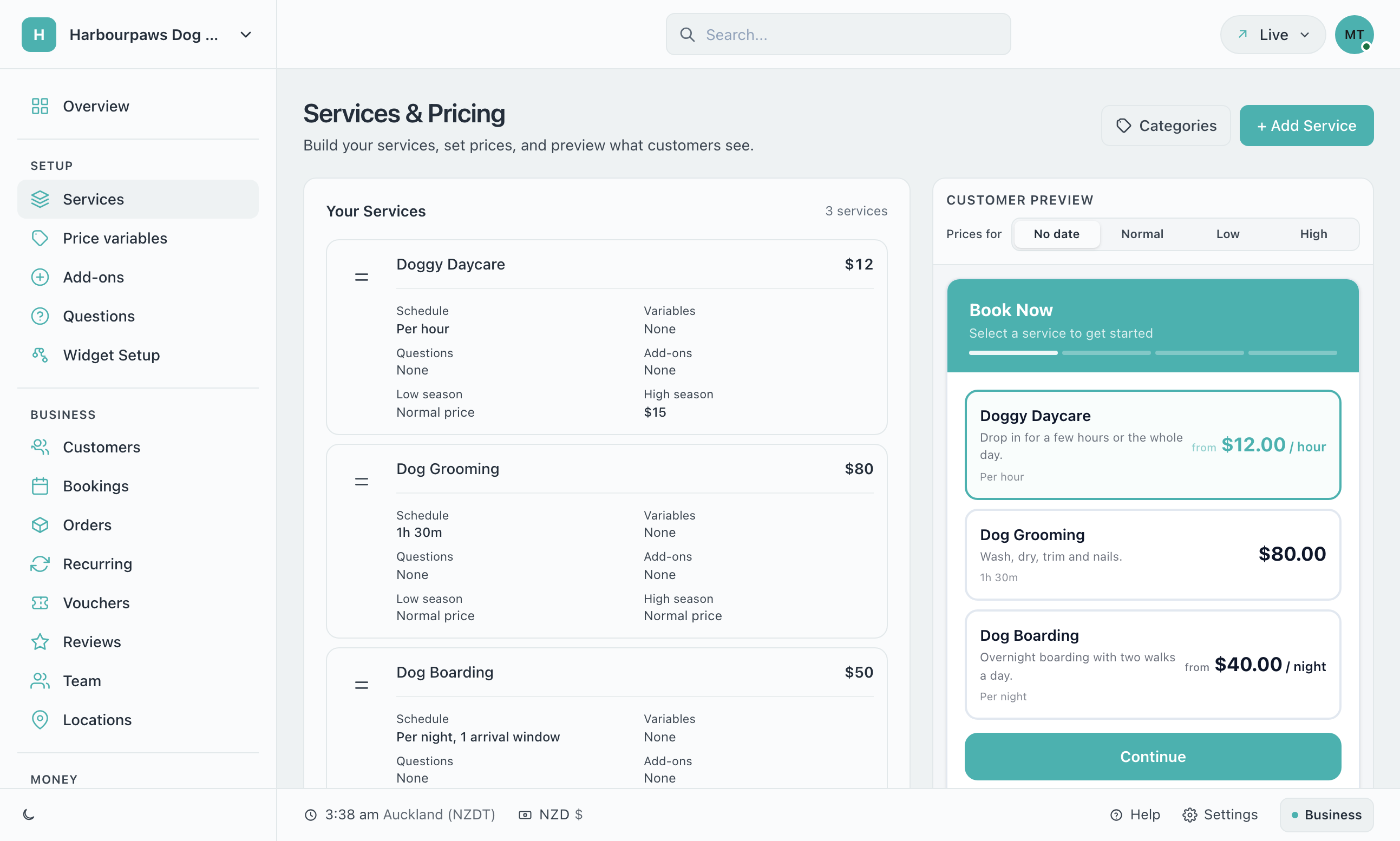
Checking a price before a customer sees it
The customer preview on Services and on Widget Setup has a Prices for selector. Choose Normal, Low or High to see what a customer would be charged in that season. No date shows what they see before they have picked a date.
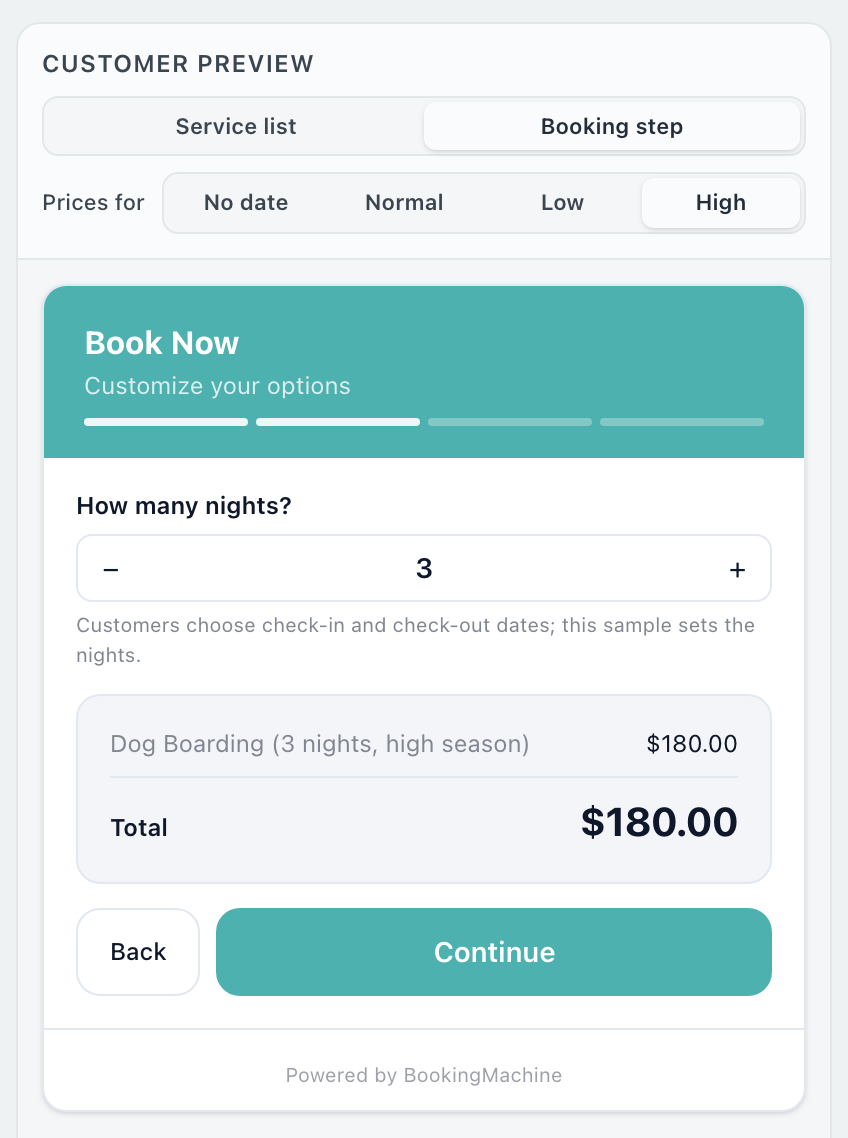
What your customers see
Before a date is chosen, a service with seasonal prices shows the least it can cost, as a “from” price.
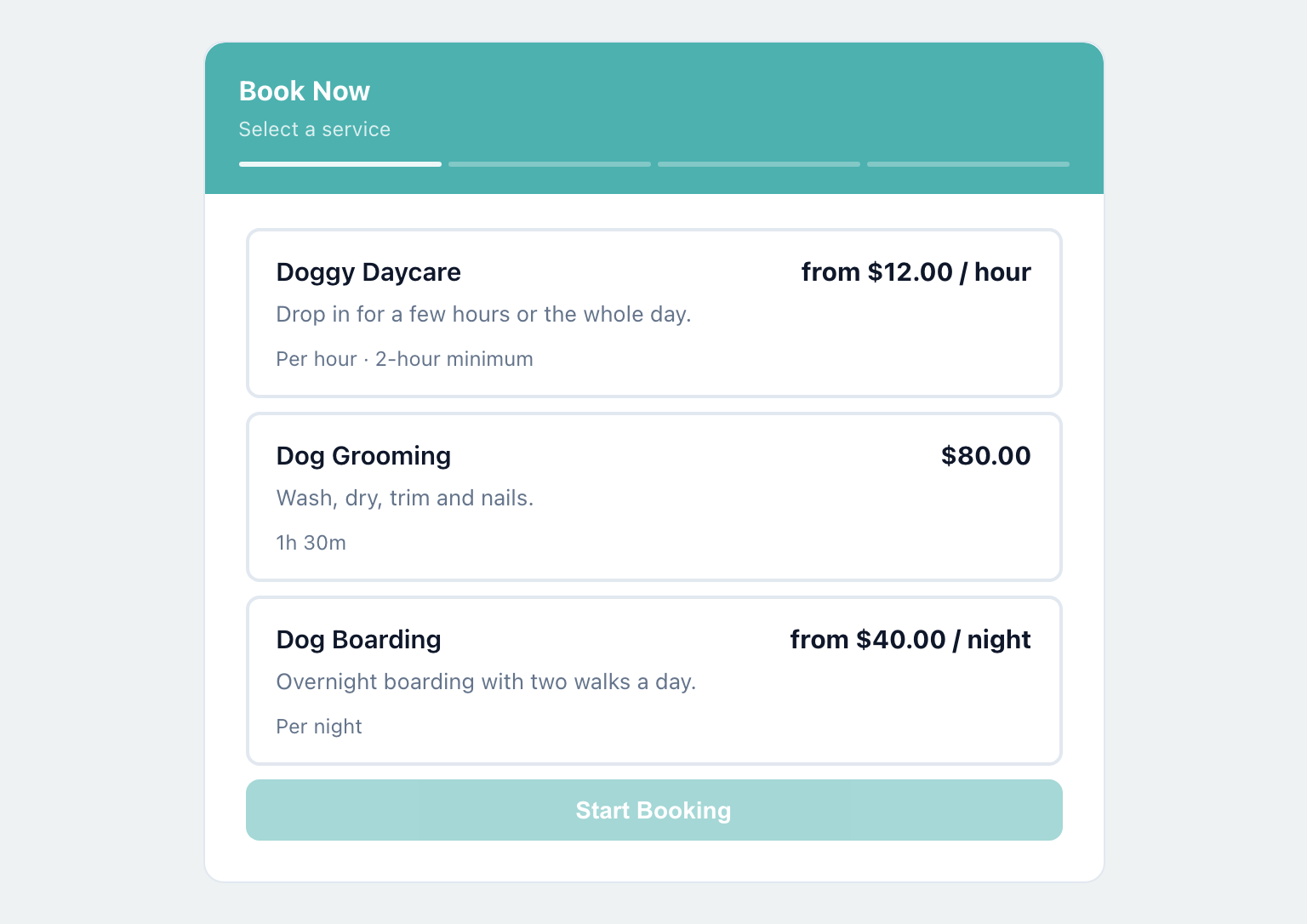
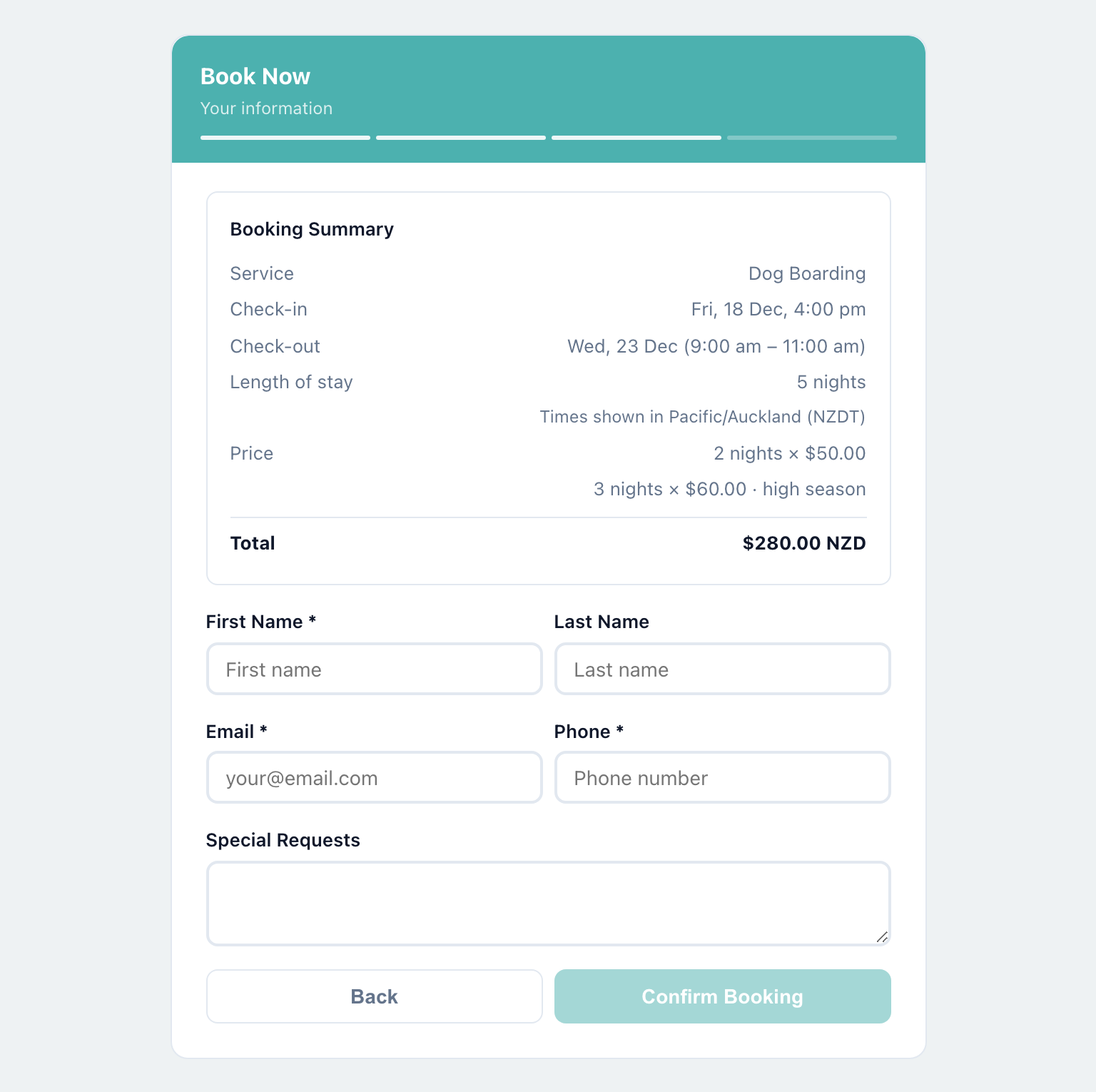
Once they pick their dates, the price is worked out for those dates. A stay that runs from one season into another is priced night by night, and the summary says so.
How each kind of booking is priced
| Booking | Priced by |
|---|---|
| A stay, sold by the night | Each night at the price of the season it falls in. A night belongs to the day it starts on. |
| An appointment, or a booking by the hour | The season of the day it starts. |
| A recurring visit | Each visit by its own date. |
| Price variables | Applied on top of the seasonal price. |
| Add-ons | Charged once, whatever the season. |
| A quote with no date | The normal price. |
How do I charge more over Christmas or a long weekend?
Add a High season for those dates and give your services a High season price. Tick Repeats every year for dates that stay the same, such as 20 December to 31 January. Untick it for dates that move, such as Easter.
What happens if I leave a seasonal price blank?
That service is charged its normal price in that season.
What happens when I switch seasonal pricing off?
Every booking is charged the normal price again. Your seasons and the seasonal prices on your services are kept, and come back when you switch it on.
Who can change the seasons?
Owners and managers. Every change is recorded in the Activity Log.
Still have questions? Contact support