Help Center
Getting Started
Core Features
Payments & Analytics
Settings
Team & Scheduling
Integrations
White-Label
White-Label
Your Website
Your free website: pages, sections, templates, the canvas, publishing and your own domain.
Every BookingMachine account includes a real, multi-page website built from your services, prices, reviews and photos. It is free on every plan; open it under Website in the sidebar.
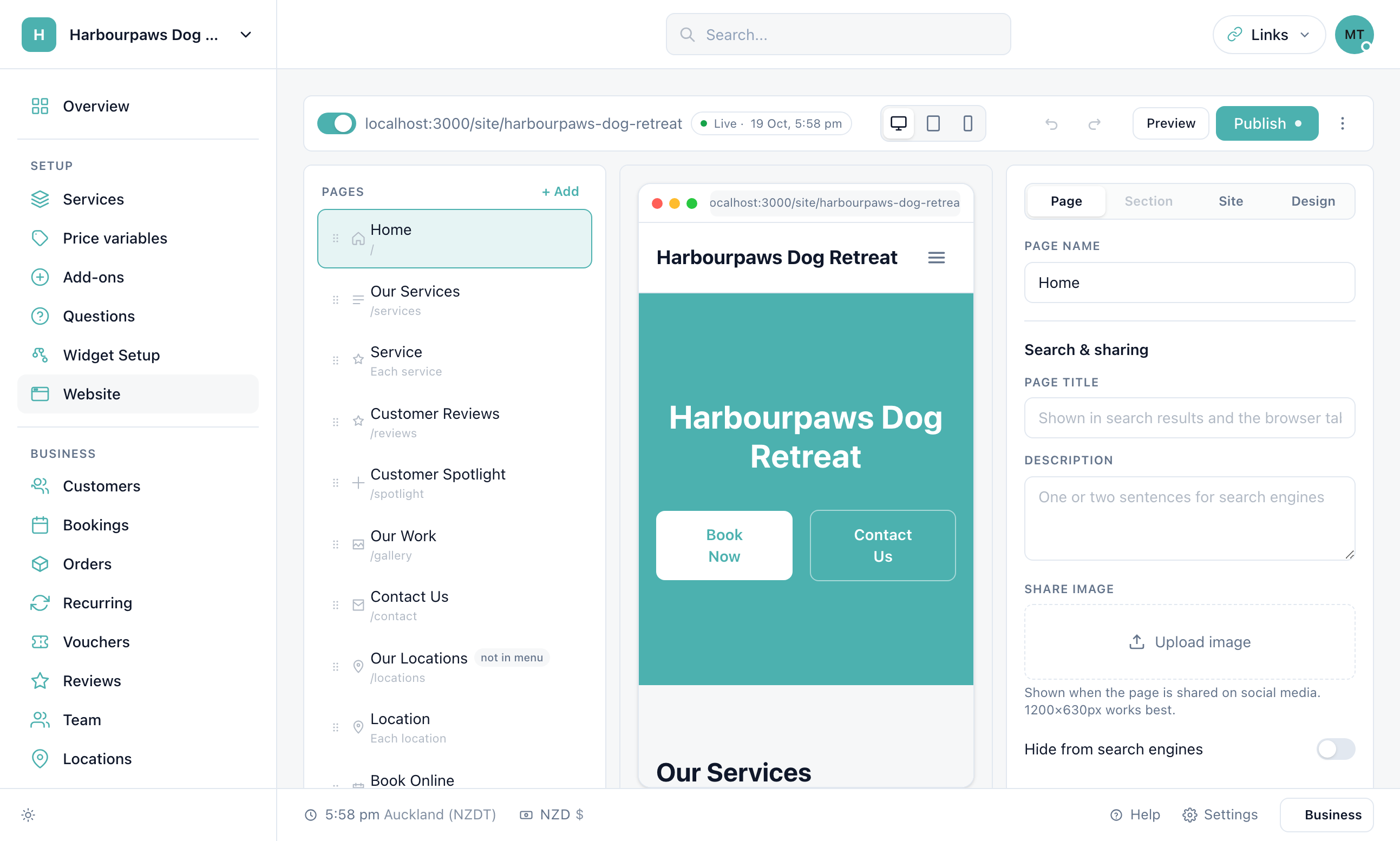
Your website address
https://bookingmachine.io/site/your-business-slugOn Pro you can serve it from your own domain instead: see Custom Domain Setup.
Pages
Your site starts with a home page, a services page and a page for every service, reviews, a customer spotlight, your work (before-and-after photos), contact, locations and booking. Those pages fill themselves from your account. Add your own pages — About, FAQ, Pricing, Areas we cover — with + Add next to Pages: three on Free, twenty on Pro, unlimited on Business.
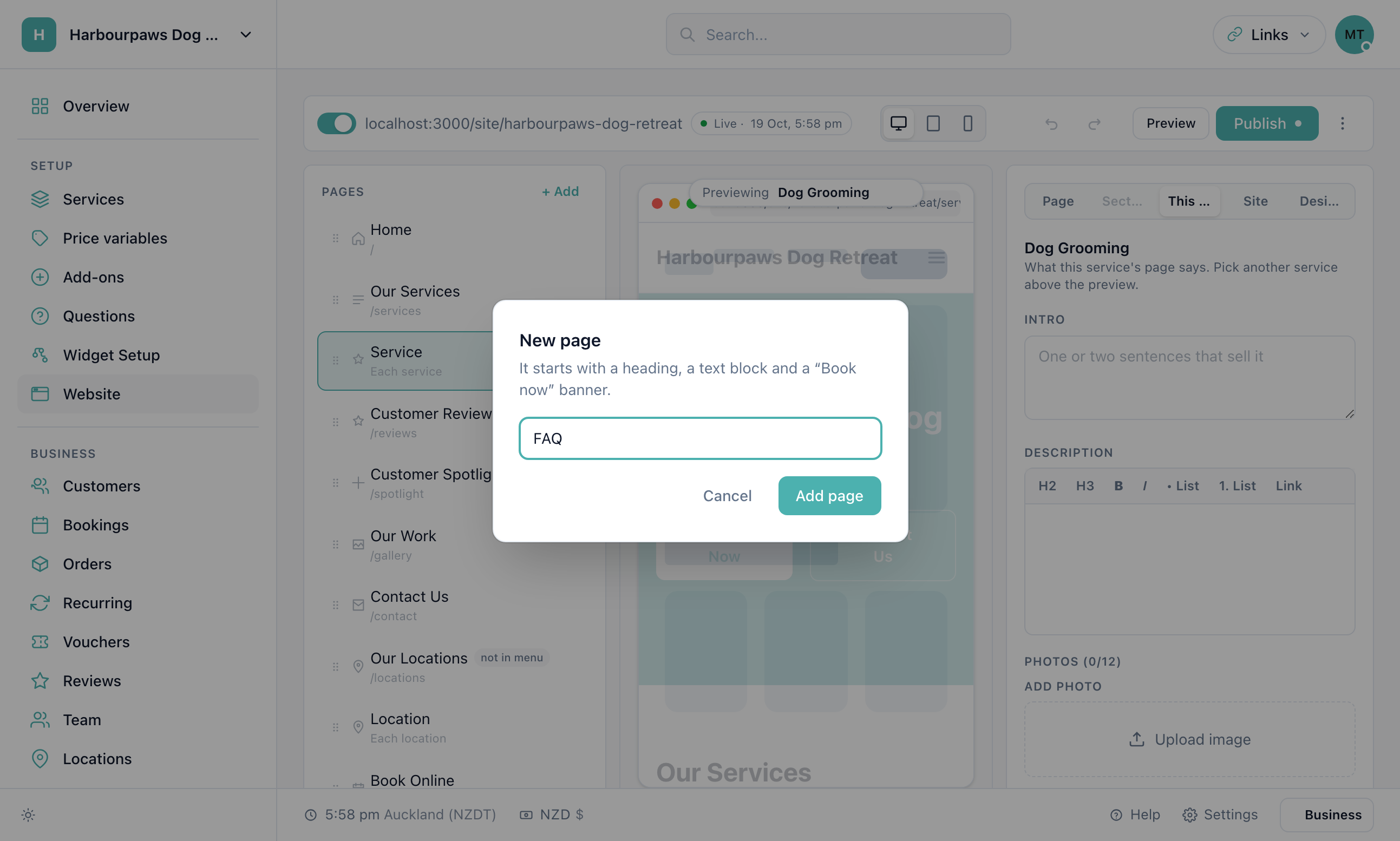
Drag pages to set the menu order. Each page has a name, an address, whether it is live and whether it shows in the menu, and on Pro its own search title, description and share image.
Sections
Each page is a stack of sections. + Add next to Sections opens the catalogue:
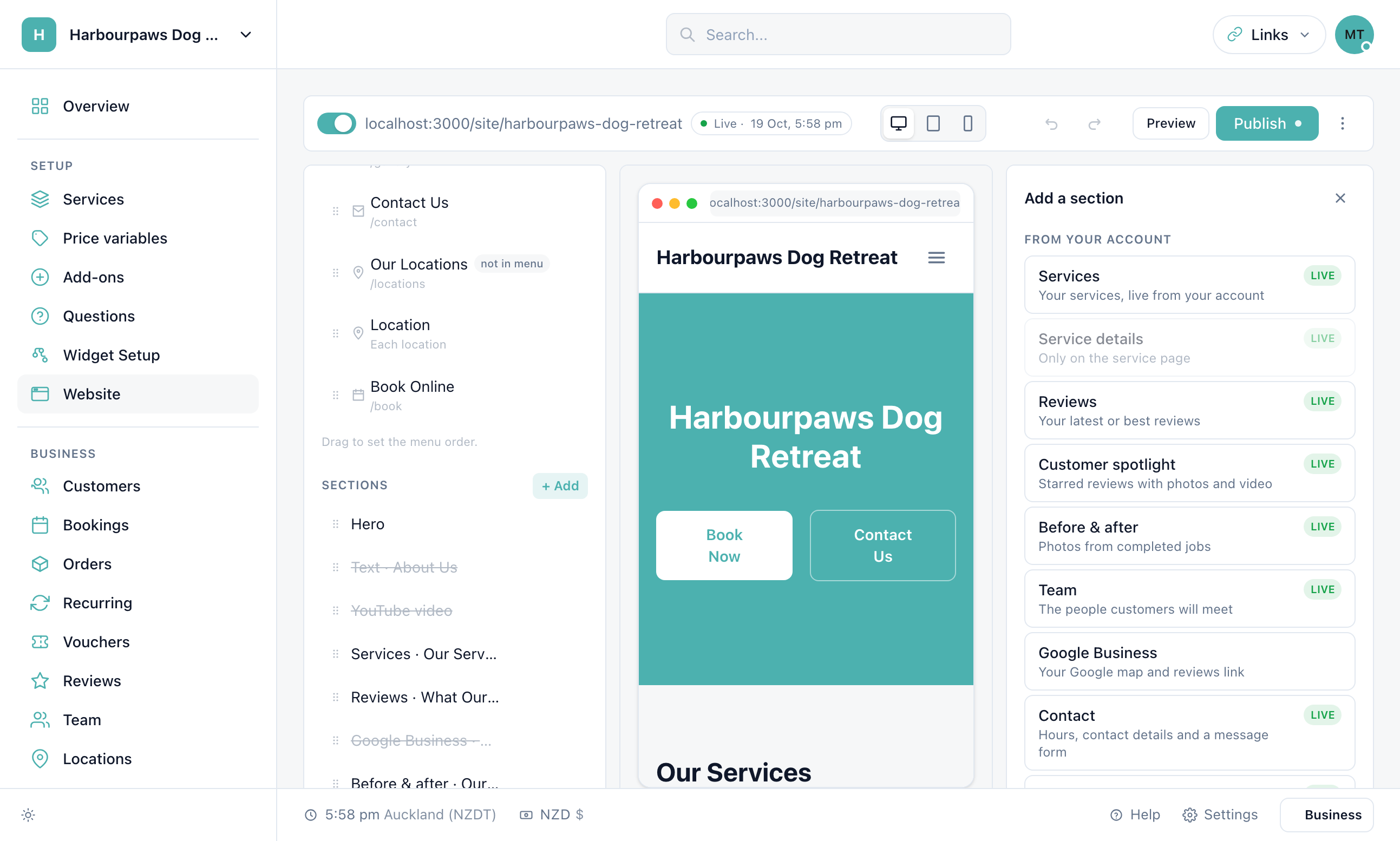
Hero
Headline, subheadline, photo and the Book Now button. Banner, split or minimal.
Services & reviews
Your menu with live prices, and approved reviews with ratings and photos.
Gallery & before/after
Your own photos, and the pairs from completed bookings.
Text, FAQ, steps, team
Rich text, questions and answers, how-it-works steps, your people.
Booking widget
Any of your booking or quote widgets, on any page. It works in the preview too.
Contact & locations
Hours, phone, email, map and a form. One page per location.
Editing on the page
The preview is a canvas. Click a section to open its settings on the right. Hover one for a toolbar that moves, duplicates, hides or deletes it — drag the grip to reorder, or press Alt+↑ / Alt+↓. Double-click a headline to type straight into it. The dashed + Add section line puts a new section exactly where you want it.
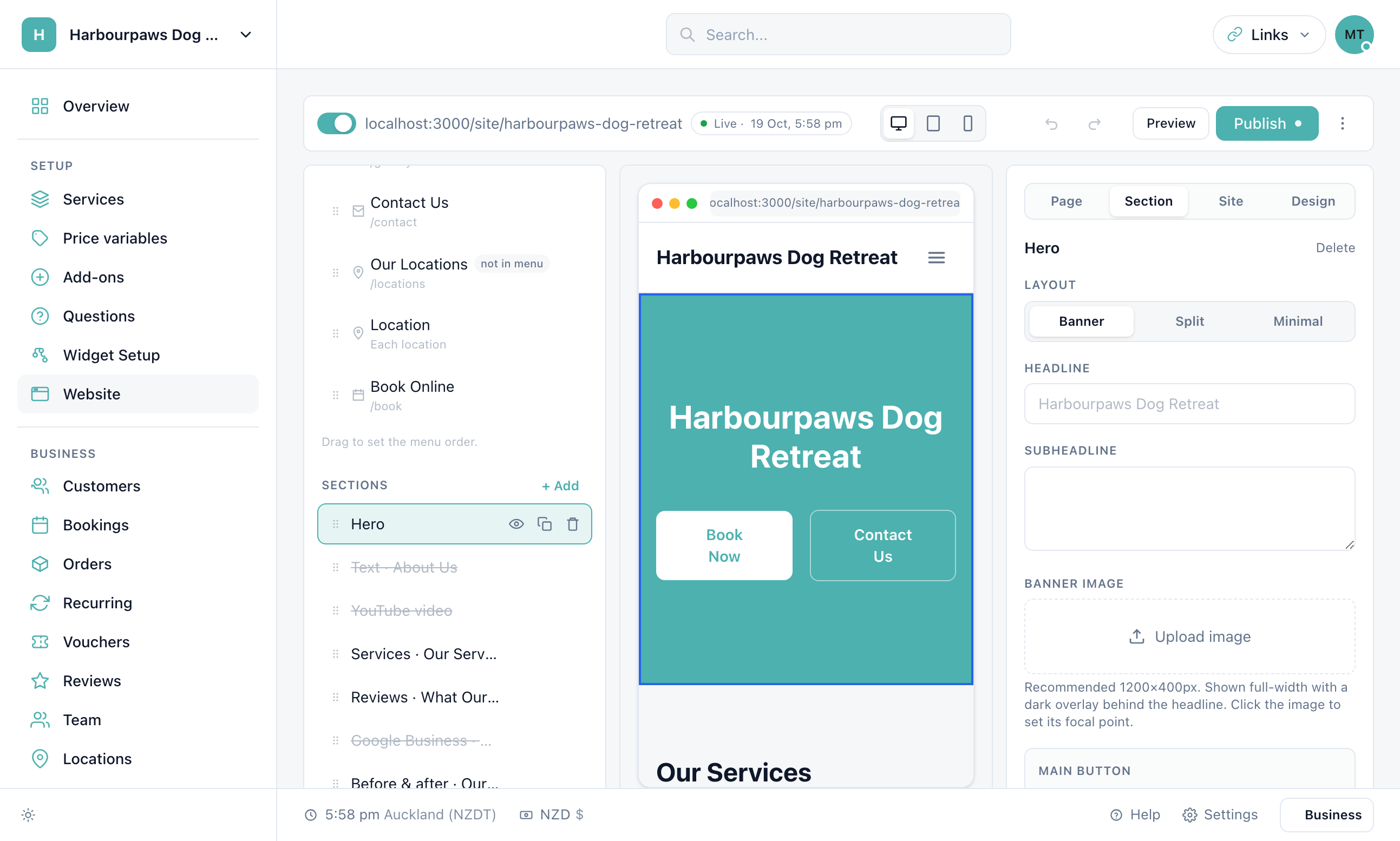
Links and buttons in the preview work like the real site, so you can walk through it page by page. Changes save as a draft automatically; nothing changes on your live site until you press Publish.
Templates and design
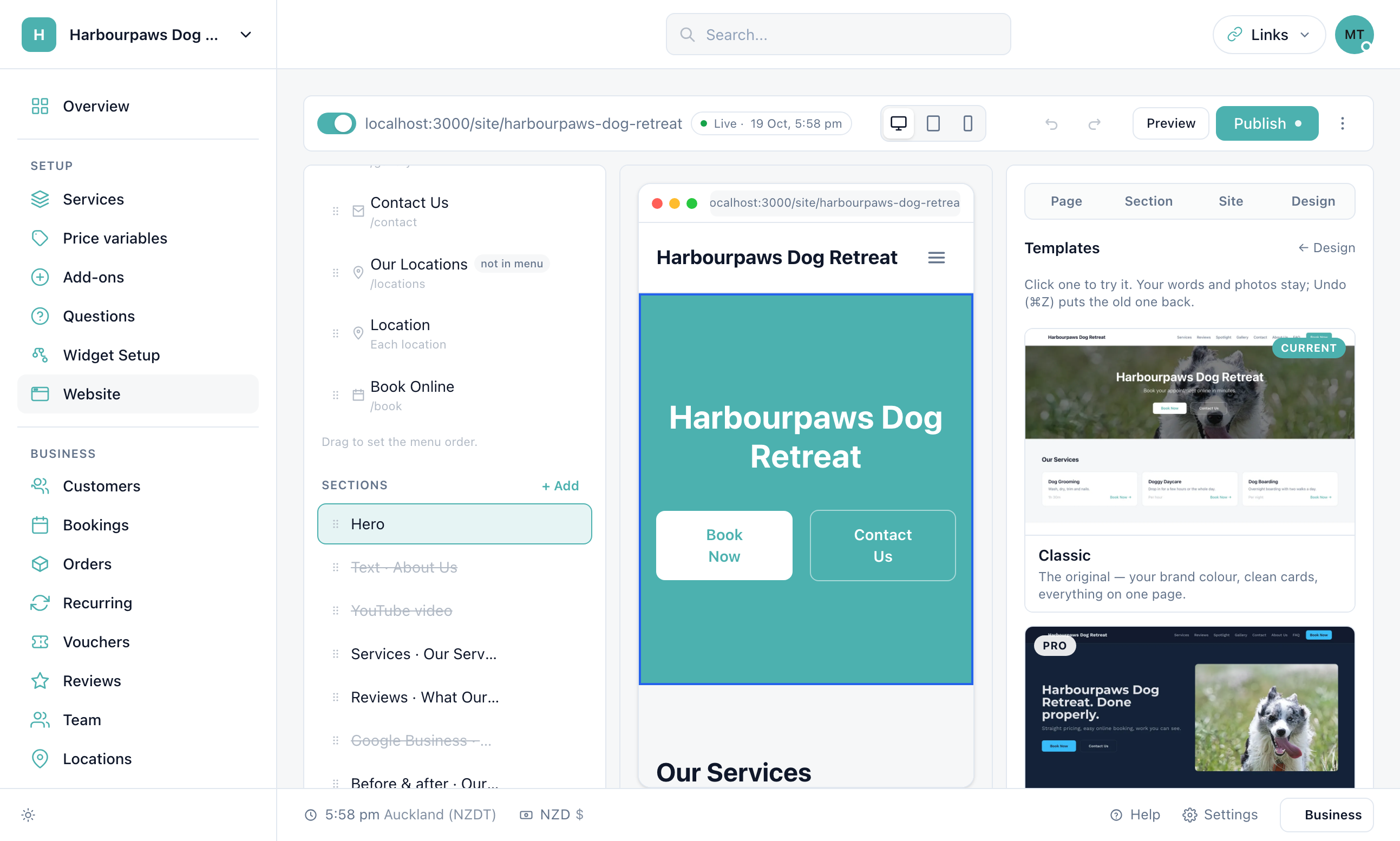
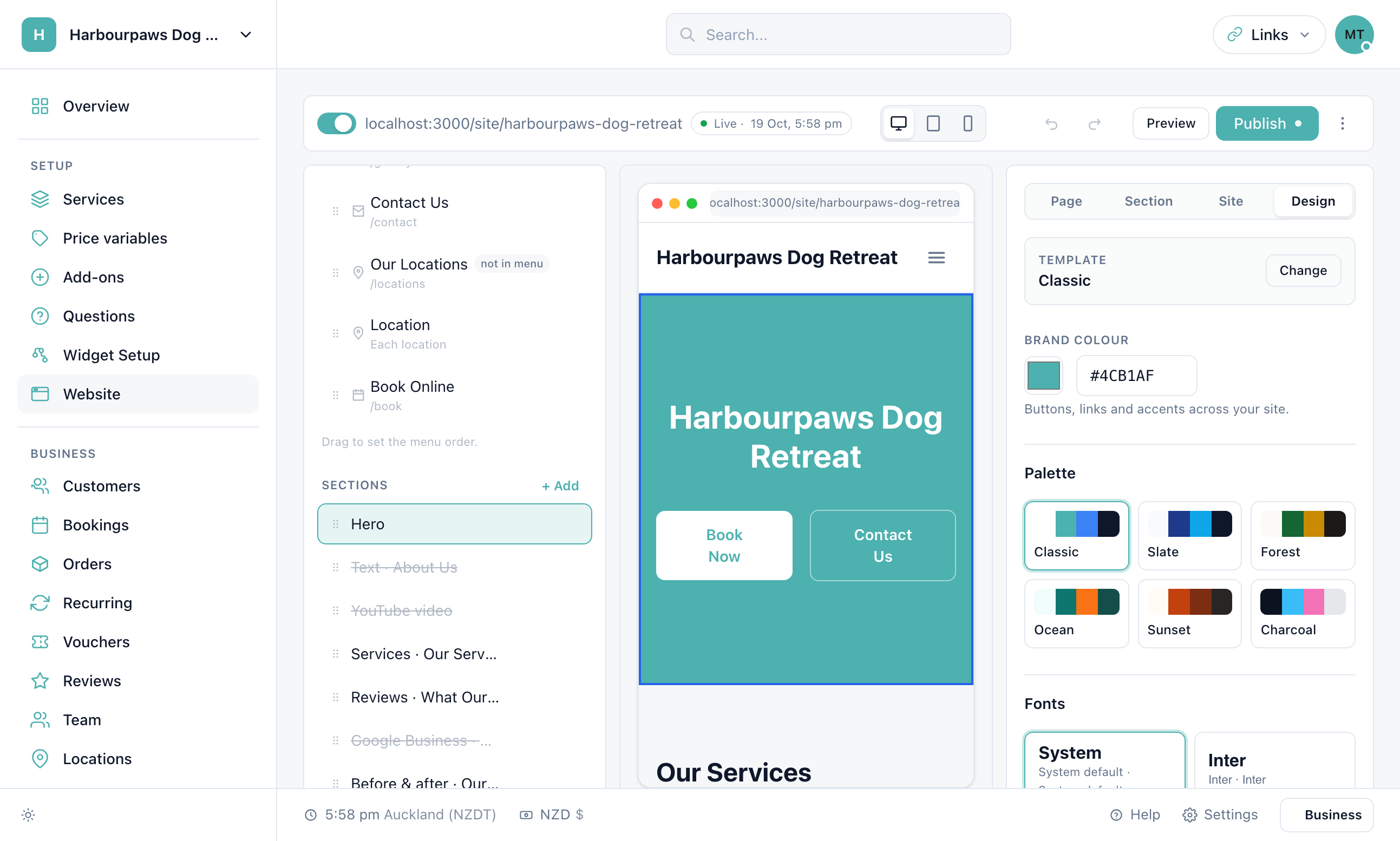
Templates are whole looks — layout, palette, fonts and starter photos for your trade. Open Design then Change and click one: it applies instantly, your words and photos carry across, and Undo puts the old one back. Classic is free; the others come with Pro.
Each service's own page
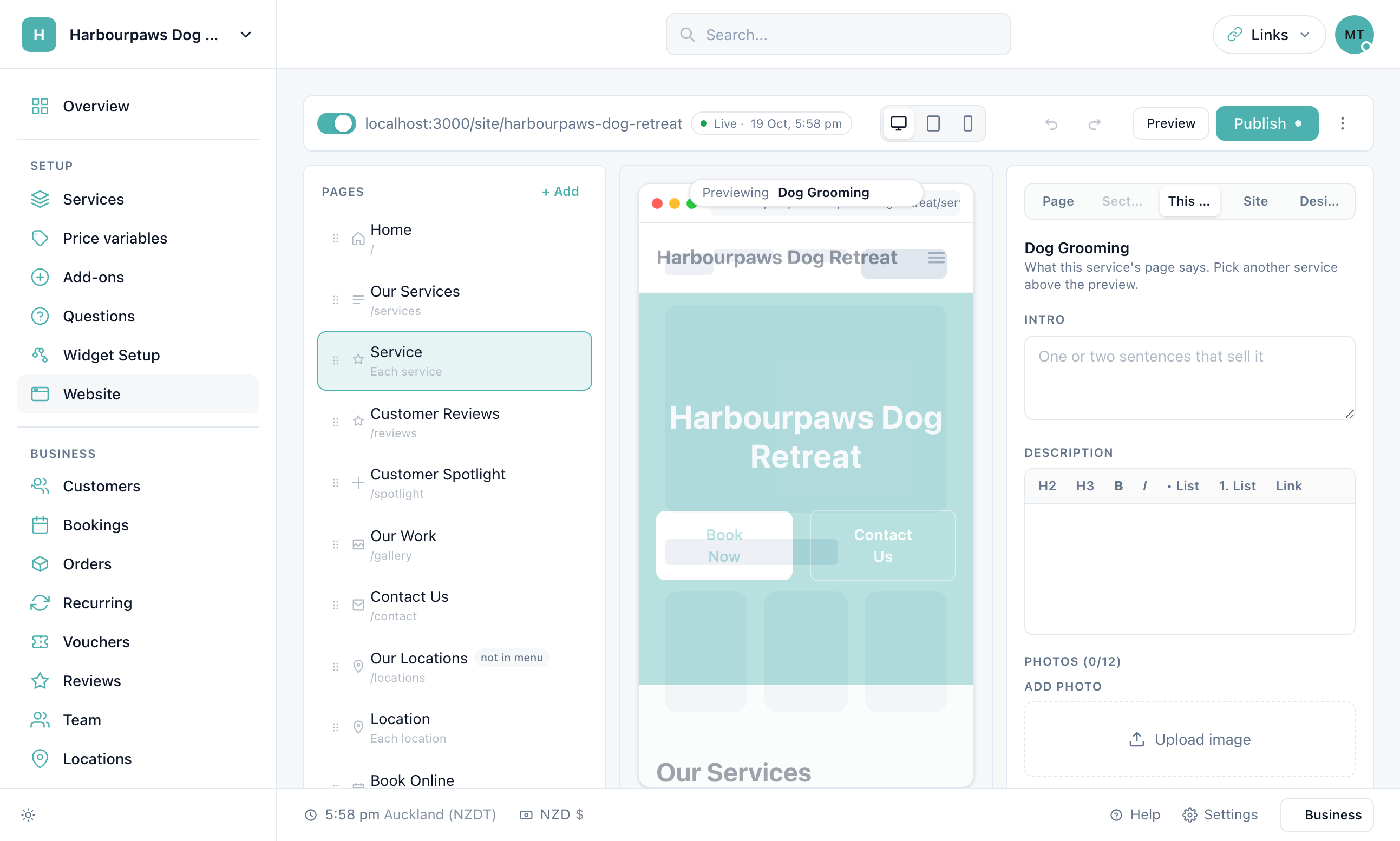
Every active service gets a page at /services/<name>. The Service entry under Pages is the layout shared by all of them — add an FAQ, reviews or a call to action there and every service gets it. Pick a service above the preview, then open This service to write its intro, long description, photos, questions and search title.
Footer, legal links and cookies
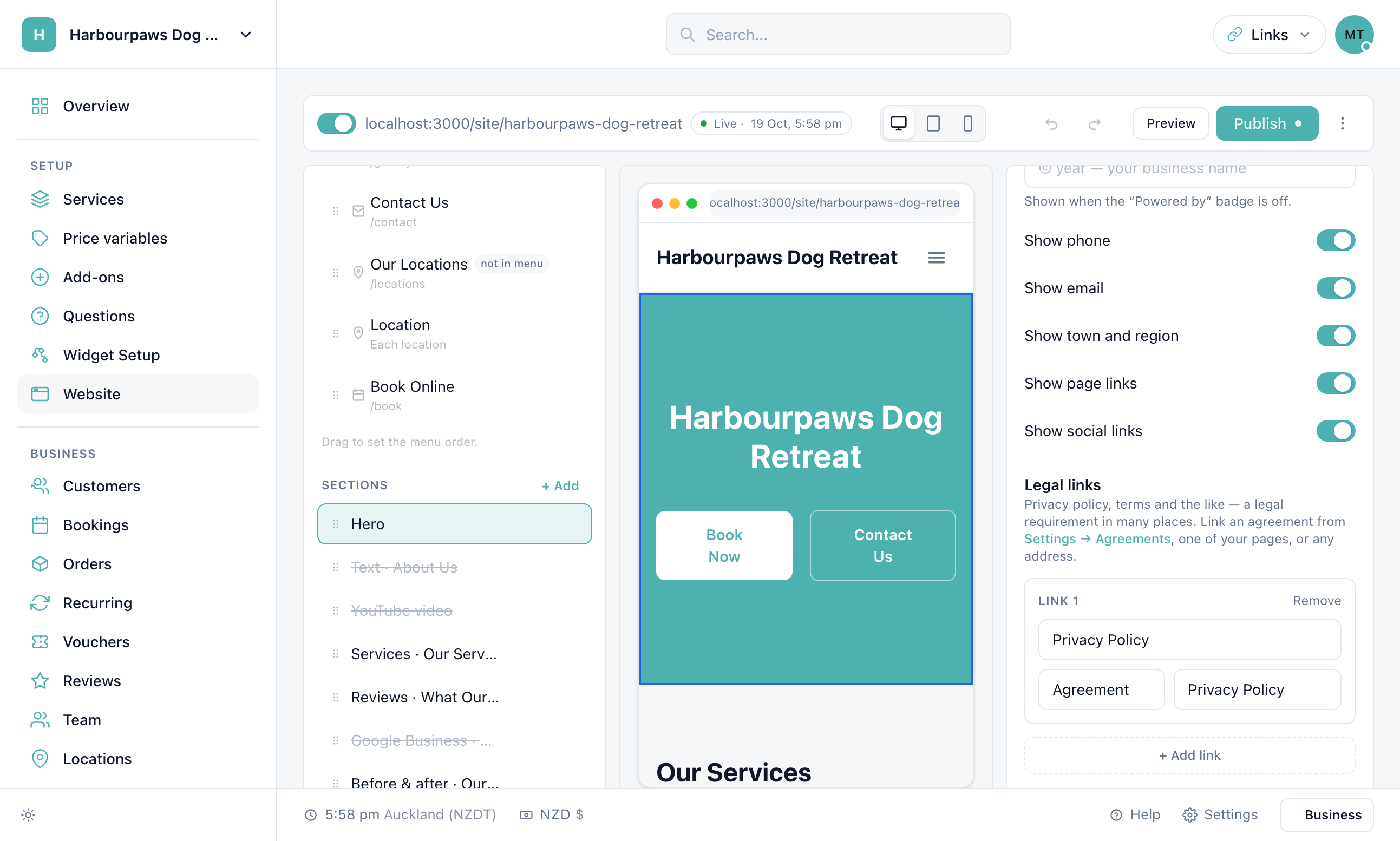
The Site tab holds the header style and logo size, the footer layout, and Legal links: your privacy policy, terms and the like — a legal requirement in many countries. Link an agreement from Settings → Agreements (there are starters for a privacy policy, terms and a cancellation policy), one of your pages, or any address. Each linked agreement gets its own page at /p/<name>. Switch on the cookie notice if you want one.
Publishing
Preview
Preview opens the draft in a new tab, exactly as visitors will see it. Only you can open it.
Publish
A short checklist points out anything worth a second look — missing contact details, starter text, no legal links — then your changes go live.
Keep editing
The live site stays as published while you work on the next draft. Discard unpublished changes takes the draft back to what is live.
Search
Every page has a title, description, canonical link, share image and LocalBusiness structured data; every service has its own page and FAQ markup; and your site publishes its own sitemap. On Pro you can set the title, description and share image per page and per service, and serve the site from your own domain.
Does the booking widget work on the website?
Yes — on the Book page and anywhere you add a Booking widget section. It is the same widget as your booking link and embed, so bookings, quotes and payments all work.
What happens to my photos if I switch template?
They stay. Templates change layout, palette and fonts; your headlines, text and photos carry across by section type, and anything a template has no slot for is kept, hidden, so it can be switched back on.
Can I go back to how it was?
Undo reverses any change while you edit, and Discard unpublished changes returns the draft to what is live.
Do starter photos cost anything?
No. They are free-to-use photography chosen for your trade, there until you upload your own.
Still have questions? Contact support