Help Center
Getting Started
Core Features
Payments & Analytics
Settings
Team & Scheduling
Integrations
White-Label
Settings
Holidays & Closures
Close the whole business, one location, or one person — for a day, a range, or a repeating rule.
Open Settings > Holidays & Closures. Rules apply to the booking widget immediately. Dates use your workspace timezone — click Change timezone to edit that on Settings > General.
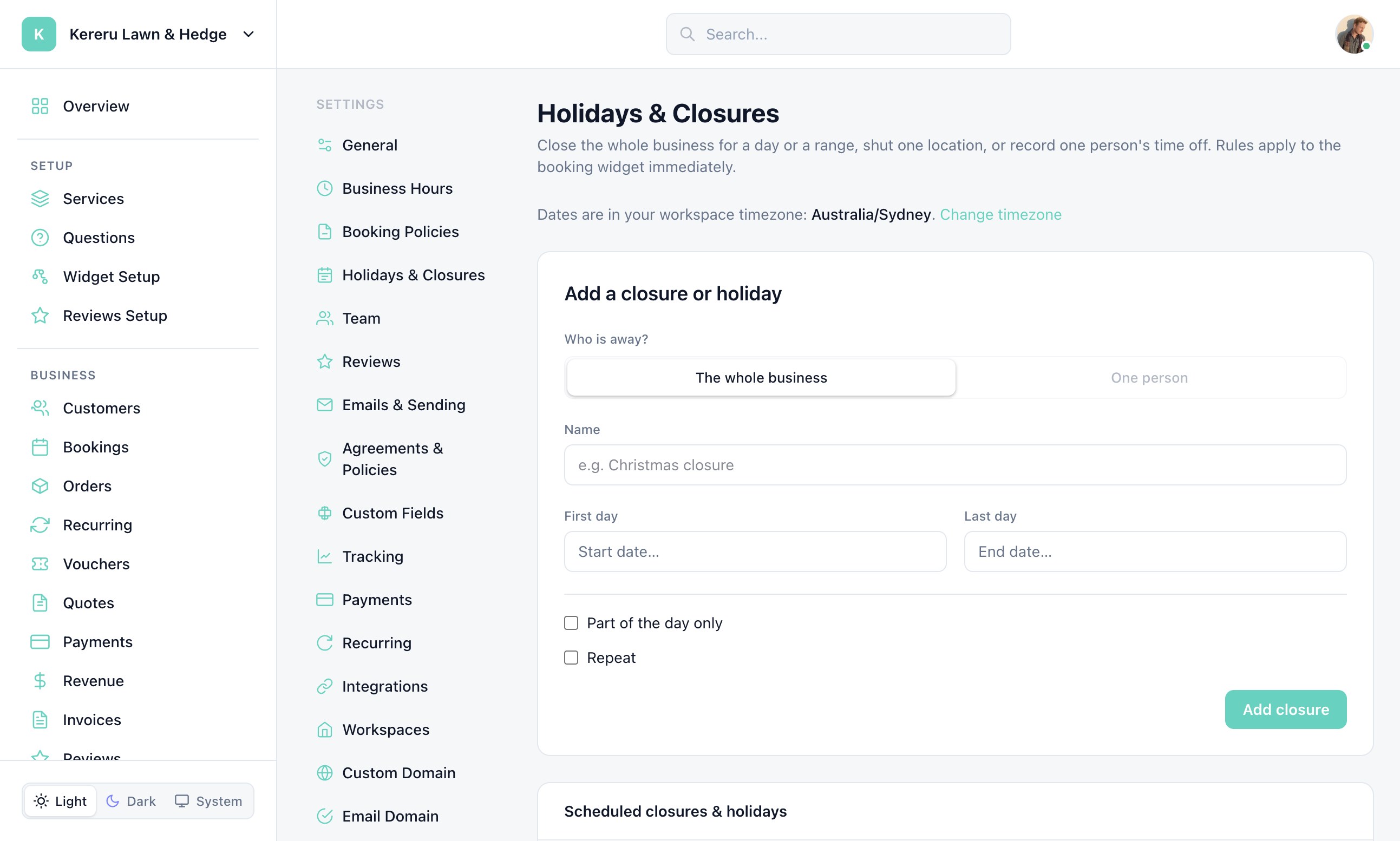
Open Holidays & Closures
Go to Settings > Holidays & Closures.
Choose who is away
Under Add a closure or holiday, pick The whole business, One location (if you have locations), or One person.
Set the dates and optional times
Enter a Name, First day, and Last day. Check Part of the day only to set start and end times instead of the full day.
Optional: repeat
Repeat Every week, Every month, or Every year, and set an until date if needed.
Save the rule
New rules use Add holiday or Add closure. Edits use Save changes. If the dates already have bookings, you are warned how many are affected — existing bookings are not cancelled automatically.
Still have questions? Contact support