Help Center
Getting Started
Core Features
Payments & Analytics
Settings
Team & Scheduling
Integrations
White-Label
Core Features
Managing Bookings
Status workflow, calendar view, manual bookings, and balance collection.
Booking Statuses
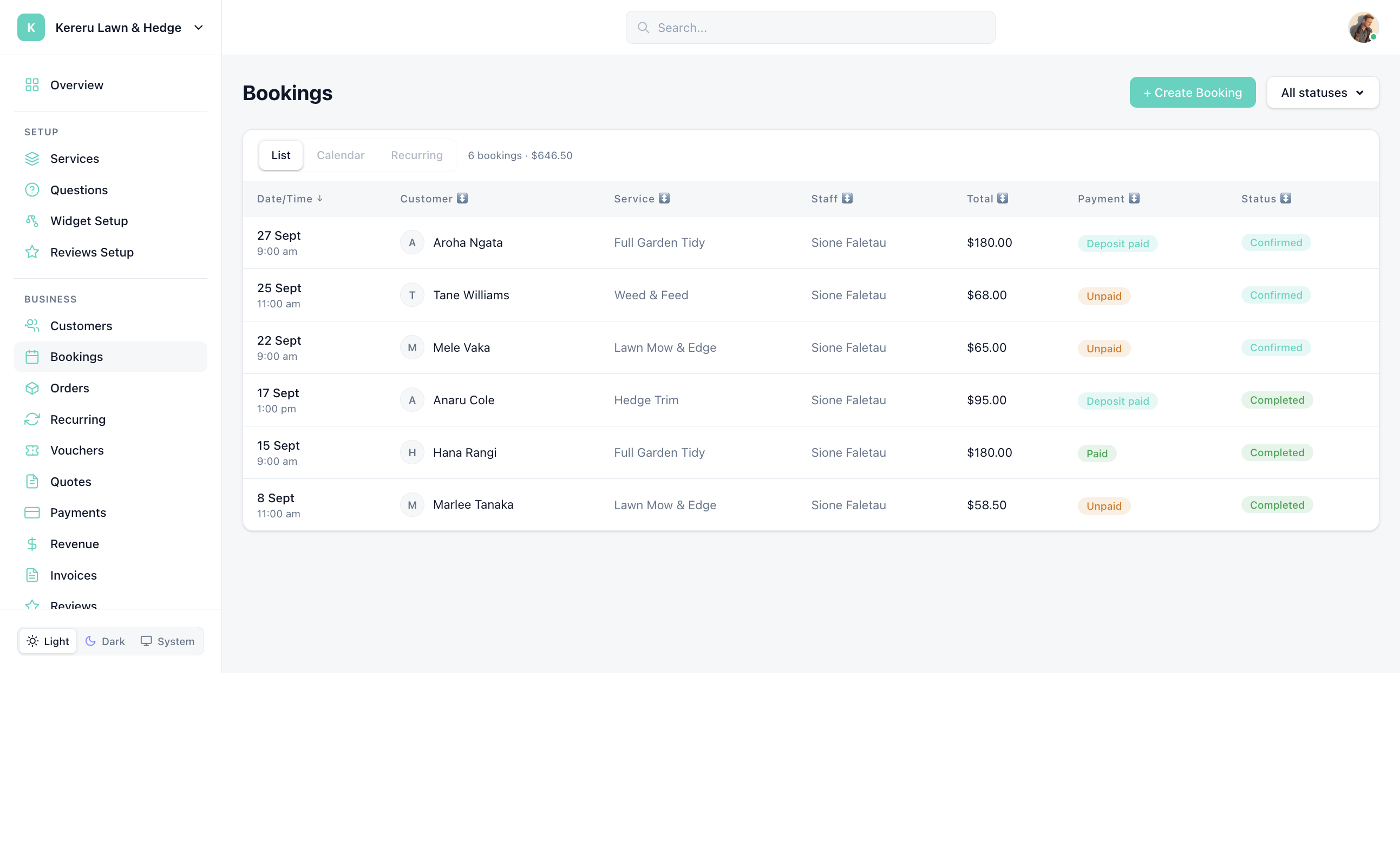
Every booking moves through a lifecycle. Update the status from the booking detail page or calendar view at Bookings.
| Status | Meaning | Next Steps |
|---|---|---|
| Pending Payment | Awaiting payment to confirm | Customer completes payment, or you confirm manually |
| Pending Confirmation | Payment received, awaiting your confirmation | Review and confirm or decline |
| Confirmed | Booking accepted and scheduled | Service will be performed at scheduled time |
| In Progress | Service is currently being performed | Mark as completed when done |
| Completed | Service finished | Collect balance, request review |
| Cancelled | Cancelled by business or customer | Refund if applicable |
| No-Show | Customer did not show up | No-show fee charged if configured |
Calendar View
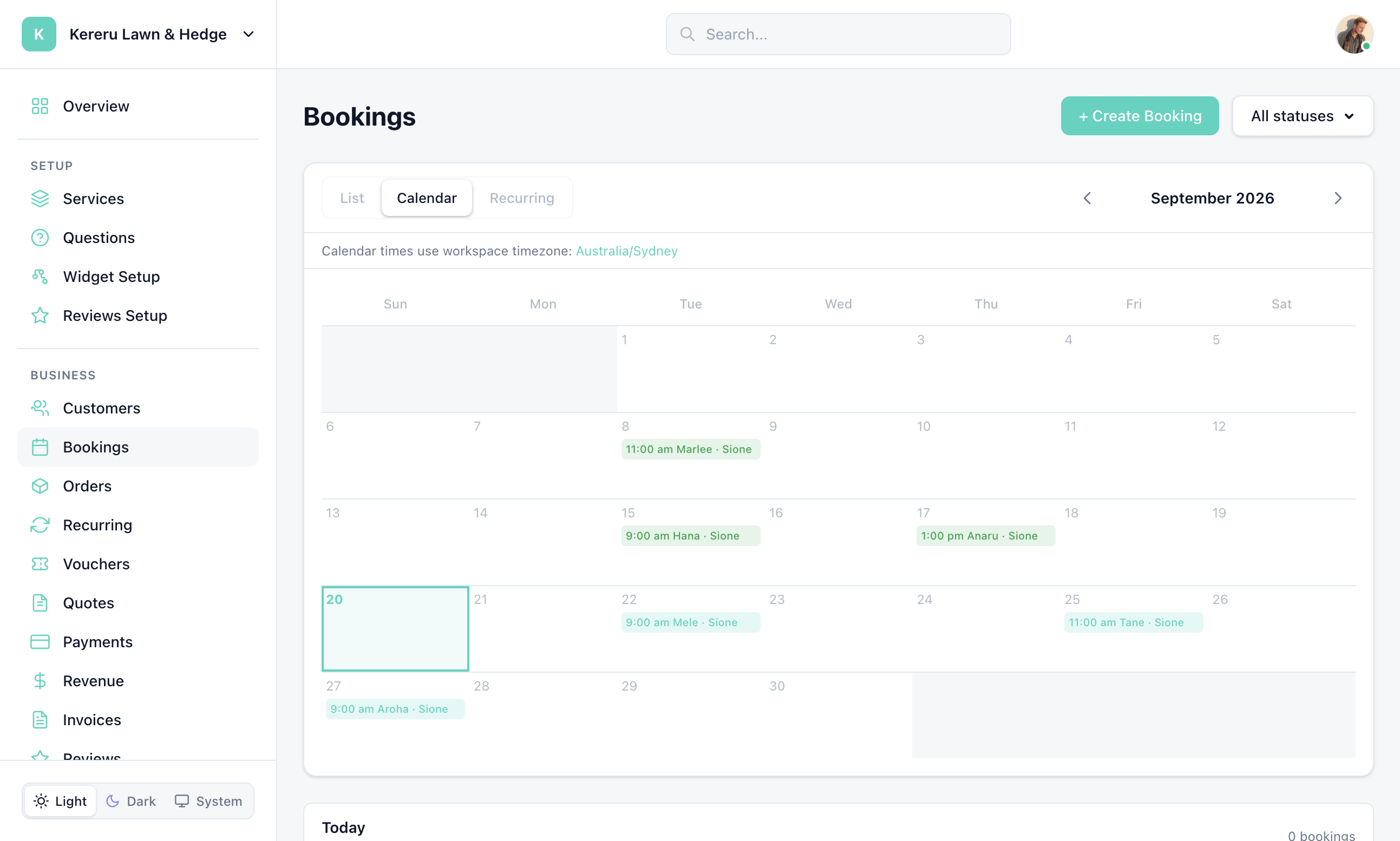
Click Calendar on the Bookings page for a month grid. Overnight stays span the nights they occupy. The line under the tabs reads “Calendar times use workspace timezone” and links to Settings > General if you need to change it.
The List tab shows all bookings with status filters. Click any booking to see full details, update status, add notes, or collect payment. Filter by status, date range, team member, or service.
Booking Details
Each booking detail page shows:
Full quote breakdown with line items
Customer contact information and address
Payment status (deposit paid, balance due, fully paid)
Assigned team member
Internal notes and activity timeline
Before/after photos
Before/After Photos
Upload photos directly to any booking from the detail page. Great for documenting work quality and building your portfolio. Photos are stored securely and tied to the booking record.
Balance Collection
When a customer paid a deposit at booking time, collect the remaining balance after service completion:
Payment Link
Send a payment link via email. The customer clicks the link and pays the balance online.
Mark as Paid
For cash, check, Venmo, or other external payments. Manually mark the balance as collected.
Manual Bookings
Create bookings manually from Bookings using + Create Booking. Select a customer (or create one), choose a service, set the date/time, and optionally skip payment.
Still have questions? Contact support