Help Center
Getting Started
Core Features
Payments & Analytics
Settings
Team & Scheduling
Integrations
White-Label
Bookings & Customers
Core Features
AI Assistant: Set Up Your Assistant
Build an AI assistant for your website in Chat Studio: what it knows, how it talks, booking in the chat, inquiries, putting it on your site and reading conversations.
Your AI assistant answers visitors on your website from what you tell it. Open AI assistant in the sidebar, give the assistant a name only you will see, and press Create assistant. Everything below is on that page, which we call Chat Studio. Changes save as you make them.
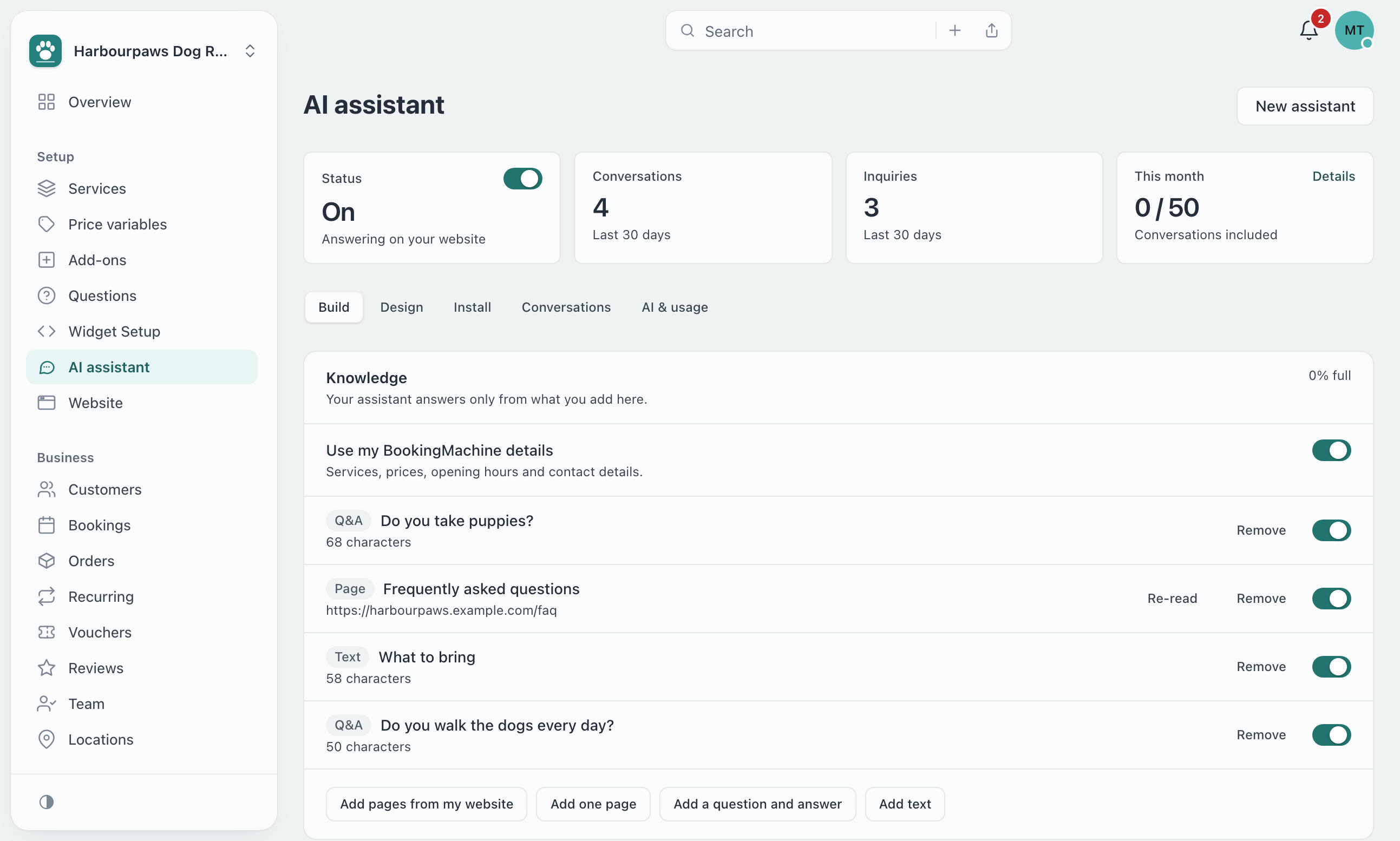
What it knows
The Knowledge card on the Build tab is everything your assistant can answer from. It answers only from this, and never guesses a price or a time.
Use my BookingMachine details: your services, prices, opening hours and contact details, read from your account each time, so they stay up to date.
Add pages from my website: reads your website’s pages and lets you pick which to add. Add one page adds a single address.
Add a question and answer: for the questions you get asked most.
Add text: anything else, in your own words.
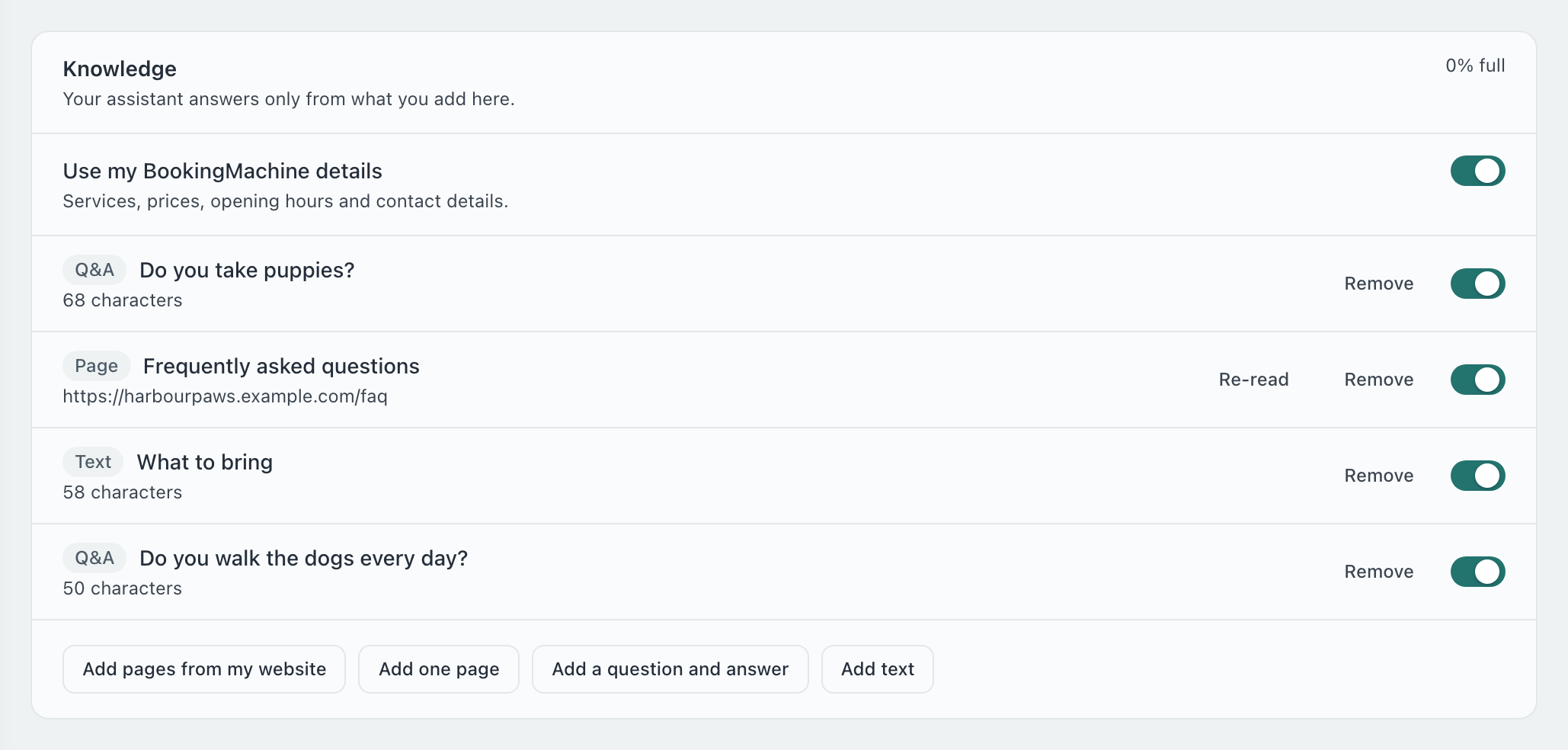
Each source has a switch to stop using it without removing it. Press Re-read on a page after you change it on your website. The figure at the top right shows how full the assistant’s knowledge is.
How it talks
Under the Knowledge card you set its name, its tone (friendly, professional, gentle or concise), your own instructions and any subjects it should stay off. Some rules cannot be changed: it always says it is an AI, and it treats what is written on your pages and by visitors as information, never as instructions.
Under Handing over to a person, set the phone number and email it gives when a visitor asks for someone. Left blank, it gives your business’s own.
Booking in the chat
The Booking card decides what happens when a visitor wants to book. It needs your services set up in BookingMachine.
Quote and book in the chat: it asks your booking form’s questions, gives the price your pricing rules give, and shows free times to tap. The visitor checks the details on a card and presses Confirm booking. Nothing is booked before they do.
Show a button to my booking page: it sends the visitor to your booking page to finish.
Don’t offer booking: it answers questions and takes inquiries only.
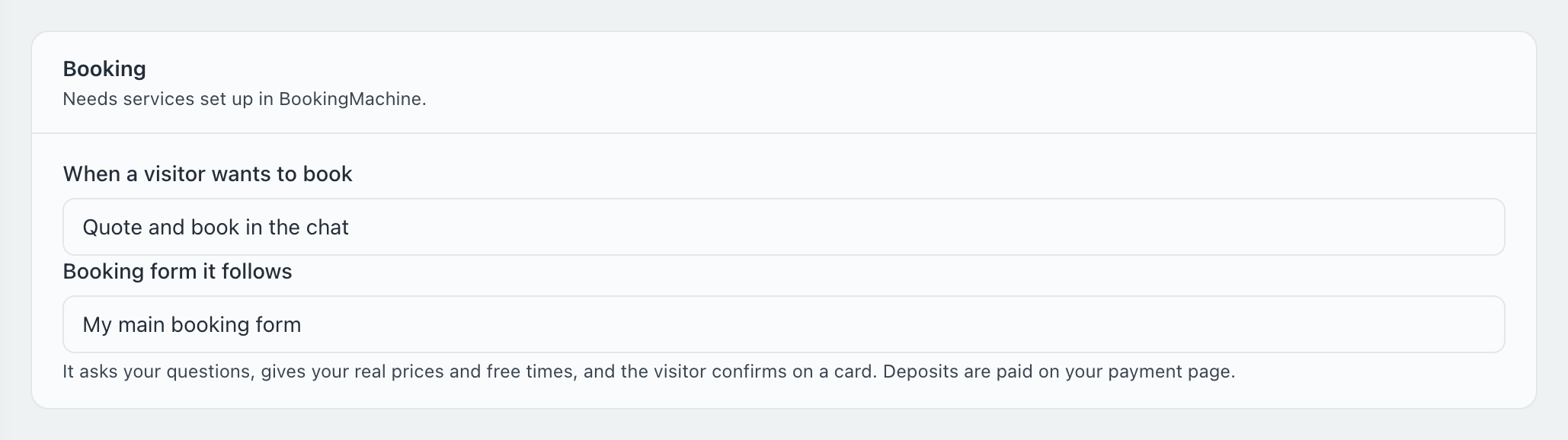
If you have more than one booking form, Booking form it follows picks whose services, deposit and agreements apply. A deposit is paid on your payment page, from a link on the card. Bookings by the night, ones that need a team member chosen and ones with agreements to accept go to your booking form, with the visitor’s answers already filled in.
Inquiries
When the assistant cannot help, it offers a short form. Under Inquiries choose whether it asks for a phone number and a message, add your own consent wording and a link to your privacy policy, and add up to five more email addresses to tell. Each inquiry is emailed to you, and the visitor is added to your clients with the conversation.
Its look
The Design tab sets the opening greeting and up to four suggested questions, the corner the chat button sits in, its icon, label and color, and the window size. Left blank, the color follows your booking form. The preview beside the settings answers as your visitors will see it; nothing you try there is counted or sent to you.
Putting it on your website
On the Install tab, copy the code under Add it to your website and paste it once on your website, just before </body>. It shows on every page that has it.

Your BookingMachine pages: switch on Show on my website and Show on my booking page to show it there with no code.
Google Tag Manager: use the code in that card instead. It works where a tag manager would drop part of the normal code.
Where it may run: list your websites, one per line, so the code works nowhere else. Left blank, it runs on any website that has it.
Analytics: the chat sends
bookkit:chat-opened,bookkit:chat-leadandbookkit:chat-bookingevents on the page, for your web designer to count, as the booking form does.

Reading conversations
The Conversations tab lists every conversation, newest first. Inquiry and Booked show which ones became one, and Unanswered marks the ones where the assistant had no answer: add what was missing to its knowledge.
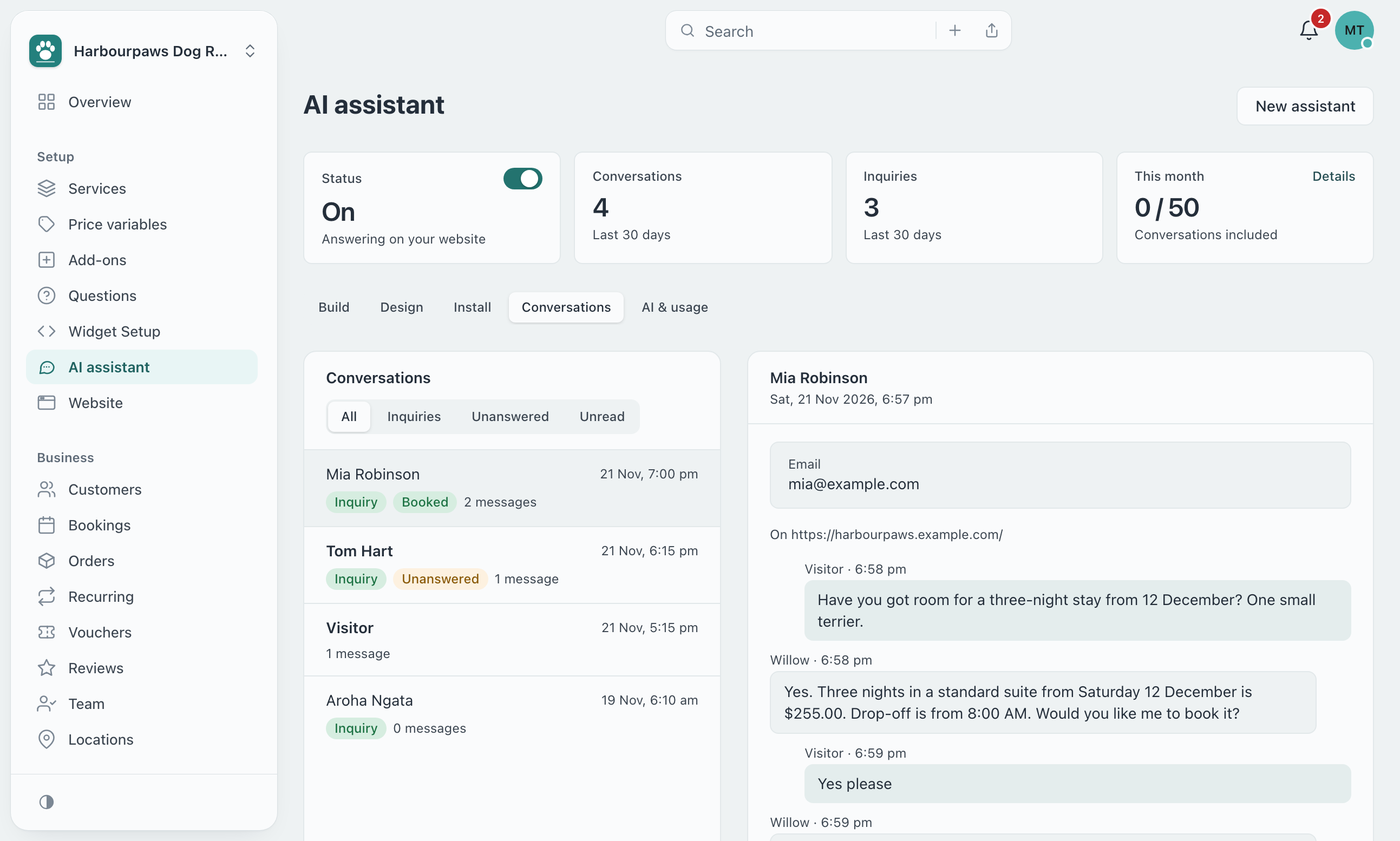
Under Privacy on the Install tab, choose how long conversations are kept: 30 days, 90 days, 6 months or a year. Older ones are deleted; inquiries stay in your clients.
More than one assistant
On plans that allow it, press New assistant at the top of Chat Studio. Each has its own knowledge, look and code, and a menu beside the button switches between them.
How conversations are counted, using your own Anthropic key and buying more each month are in AI Assistant: Your Key and Allowances.
I added the code and nothing shows.
Check the Status switch at the top of Chat Studio is on, and that your website is listed under Where it may run if you filled that in. A page that was already open needs reloading.
It said it didn’t know something it should.
Open the conversation on the Conversations tab, then add the answer to Knowledge as a question and answer, or re-read the page that has it.
Can it change a booking or take a payment?
No. It can make a new booking when the visitor confirms on the card. Deposits are paid on your payment page, and a booking made in the chat is changed like any other.
Does trying it in the preview use my conversations?
No. Preview conversations are never counted, never sent to you and never become inquiries or bookings.
Still have questions? Contact support