Help Center
Getting Started
Core Features
Payments & Analytics
Settings
Team & Scheduling
Integrations
White-Label
Bookings & Customers
Bookings & Customers
What Your Customers See
The pages your customers open from your emails: quotes, payments, invoices, the review form, your reviews page and job photos.
Every email you send a customer links to a page of its own: a quote to accept, a balance to pay, an invoice, a review form or the photos of a finished job. The pages wear your logo and brand colour, need no account and work on any phone. Each link is private to that customer.
Their booking page, where they can also move or cancel, has its own article: Cancel & Reschedule Online.
A quote
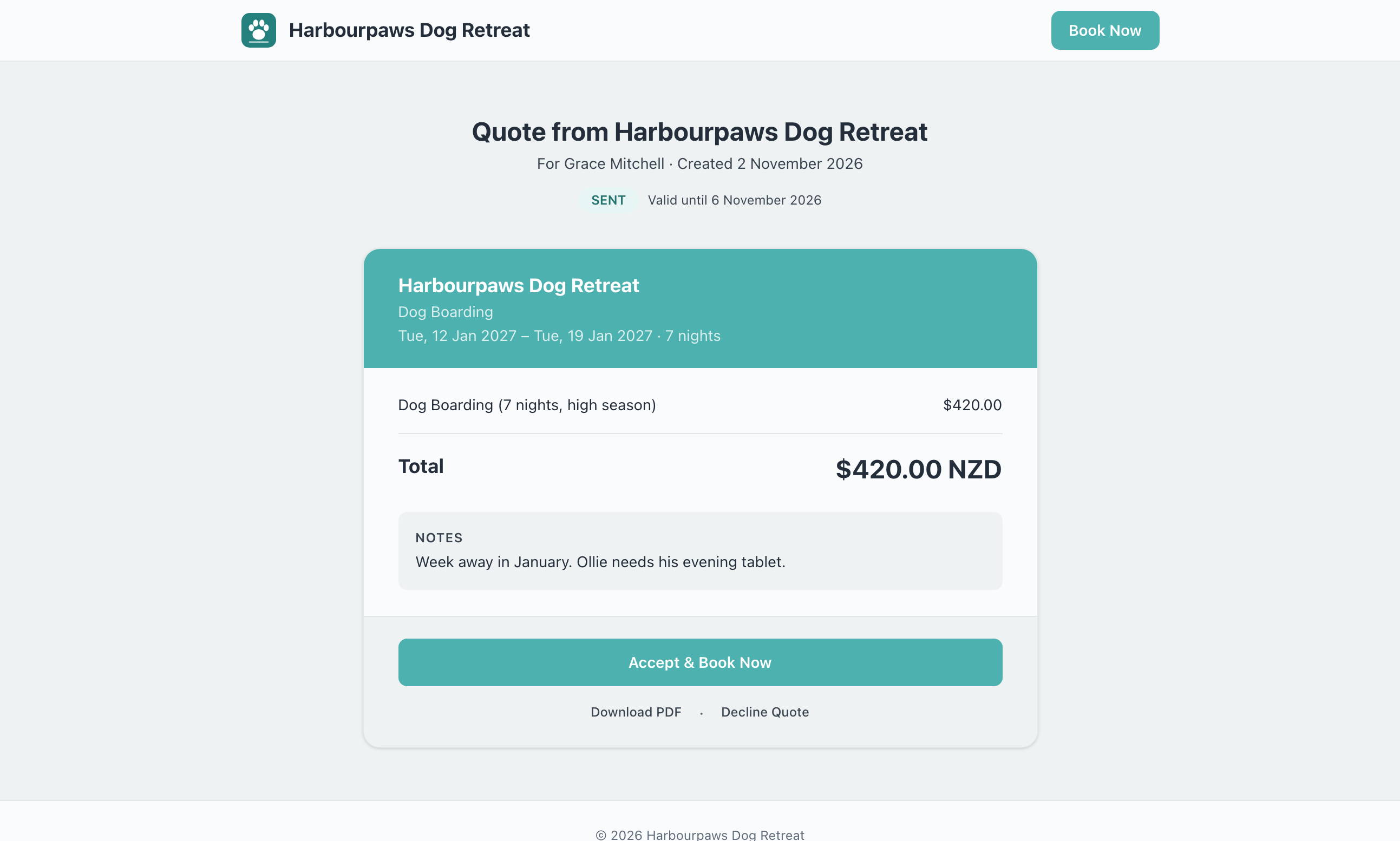
When you send a quote from Quotes, the customer gets an email with a link to it. The page shows what you quoted, line by line, the total, your notes and the date it is valid until.
| Button | What happens |
|---|---|
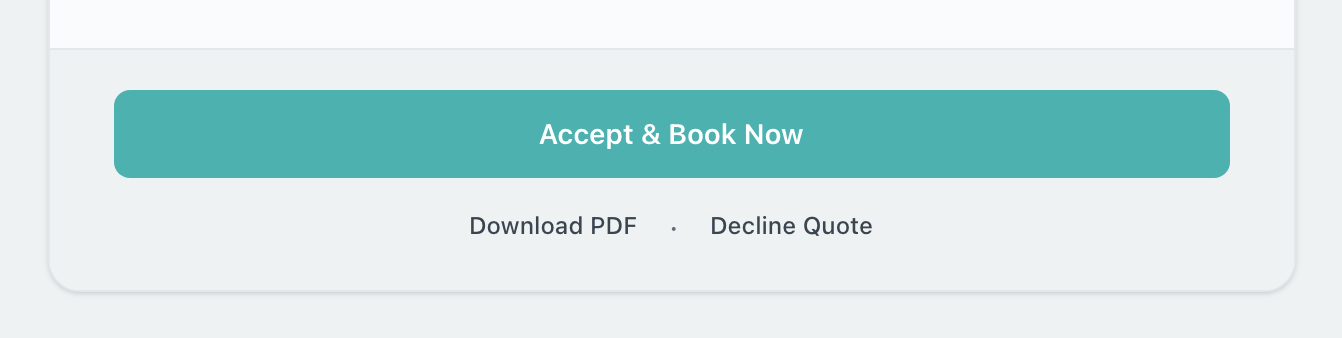
| Accept & Book Now | Opens your booking page with the quote filled in, so they pick a time and book it at the quoted price. Shown when your booking page takes bookings for every service on the quote. |
| Accept quote | Shown instead when they can’t book it themselves (your booking form takes quote requests or orders, bookings are paused, or the quote is a package). You are told, and you make the booking. |
| Download PDF | Saves the quote as a PDF. |
| Decline Quote | Asks them to confirm, then marks the quote declined. |
Once the quote is booked, declined or past its date, the buttons go and the page says so. An expired or declined quote asks them to contact you for a new one. More on quotes in Quotes & Invoices.
Paying a balance
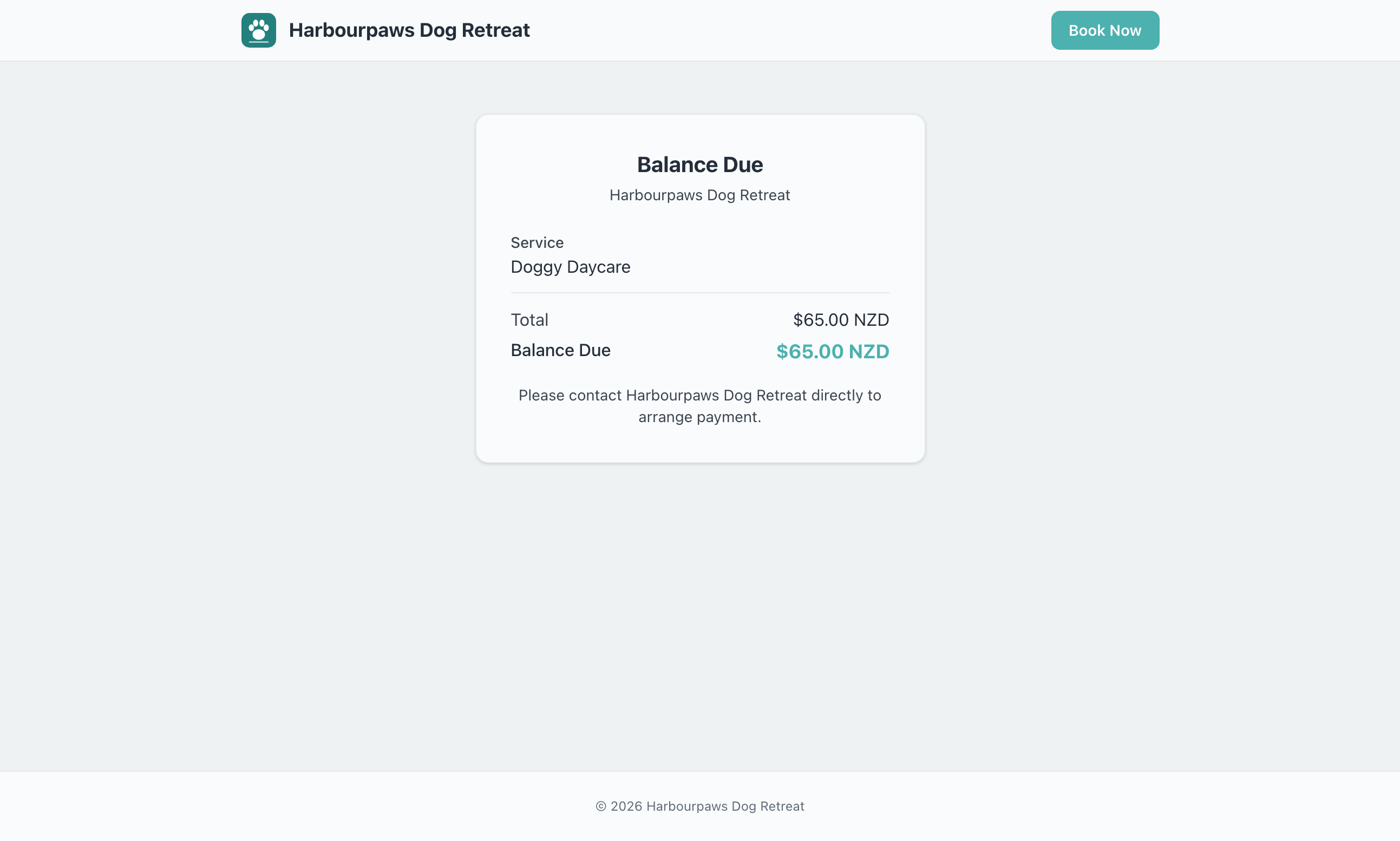
A booking with money still owing has a payment link: on the customer’s booking page, and in the balance-due email you can send from the booking. With payments connected, the link takes them straight to a secure Stripe checkout for the amount due. Once it is paid, the link says they are all paid up.
If you allow tips and the job is marked complete, the link first shows the balance with a choice of No tip, 10%, 15%, 20% or another amount, then one checkout for both.
If you have not connected payments yet, the link shows the balance and asks them to contact you to pay, as below. See Payments to connect.
Leaving a tip
Once a job is complete and nothing is owed, the customer’s booking page offers Leave a tip, with the same choices, paid by card. The work summary email links to it. It only shows while Allow tips is on in Booking Policies and payments are connected, and the page then shows the tip they left.
An invoice
An invoice you send opens on its own page with your business details, each line, the total, the amount due and the due date. Customers can download it as a PDF. With payments connected it has a Pay … Now button for the amount due; without, it tells them how to contact you. A paid invoice says it has been paid in full.
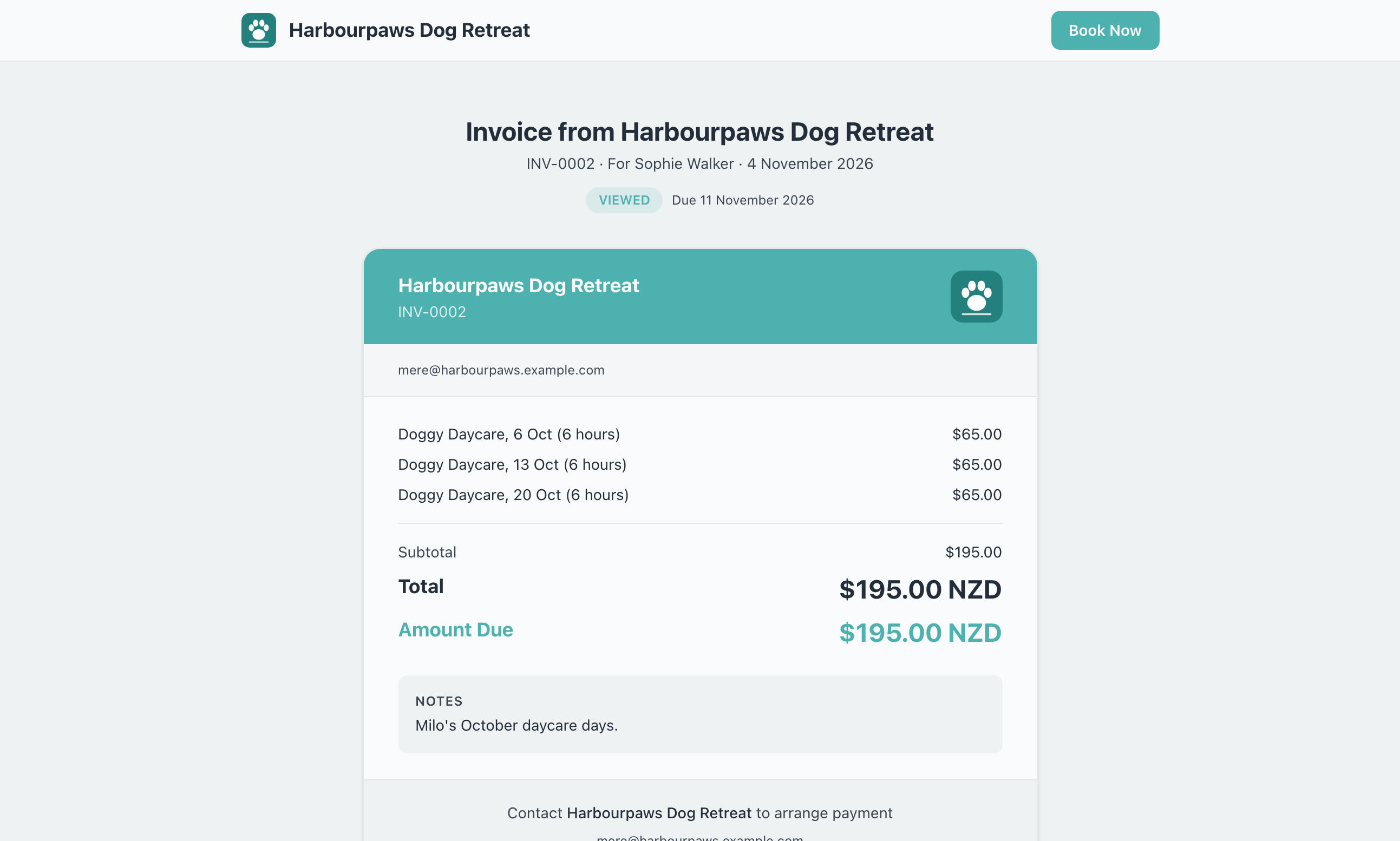
The badge at the top changes as the invoice moves on: Viewed once they have opened it, Overdue after the due date.
Leaving a review
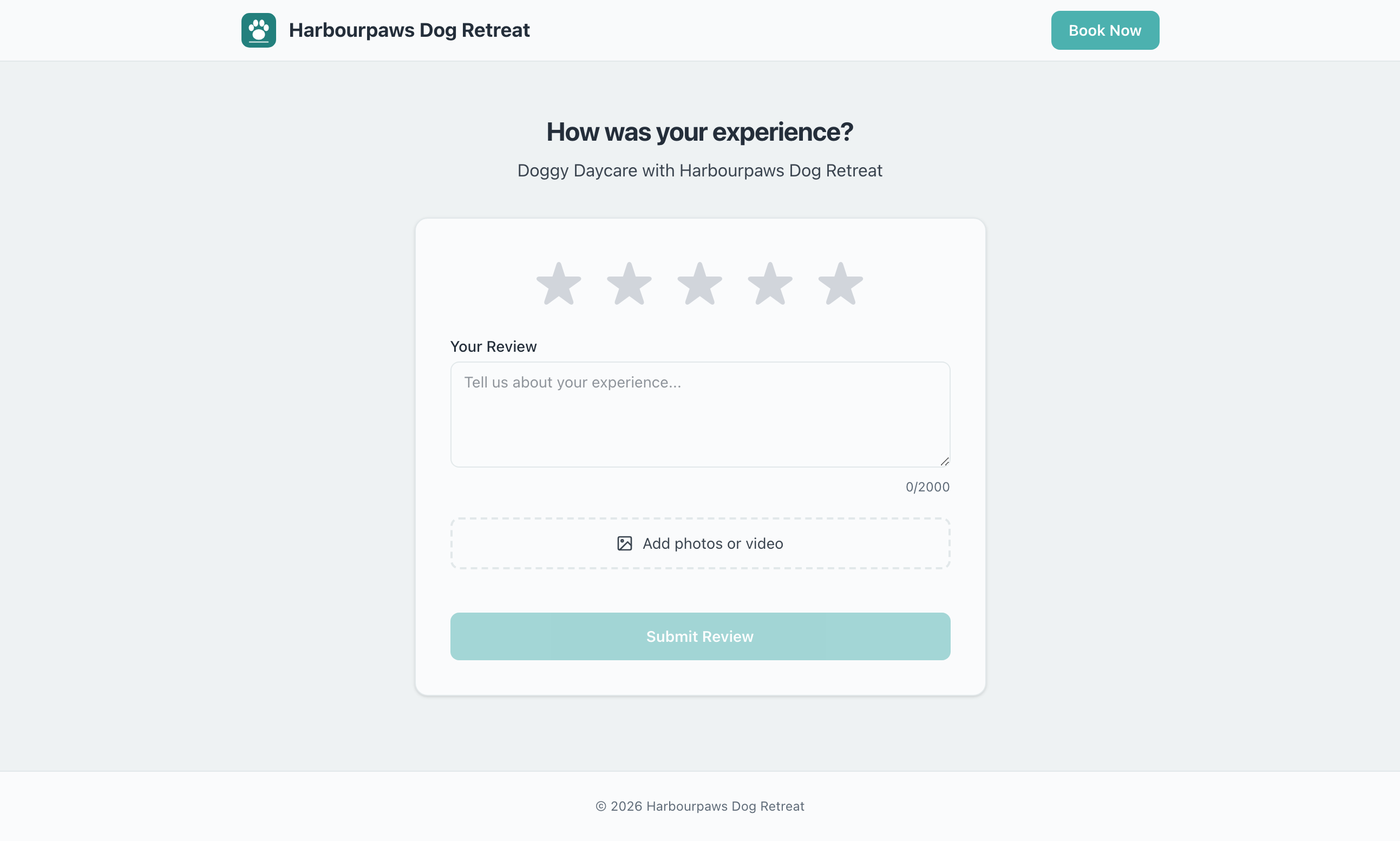
After a job, the review request email (turned on in Settings → Reviews) links to a short form: a star rating, a few words and, if you allow them, photos or a short video. A review sent from this link is marked Verified, because it comes from a real booking. Each booking can be reviewed once.
Your reviews page
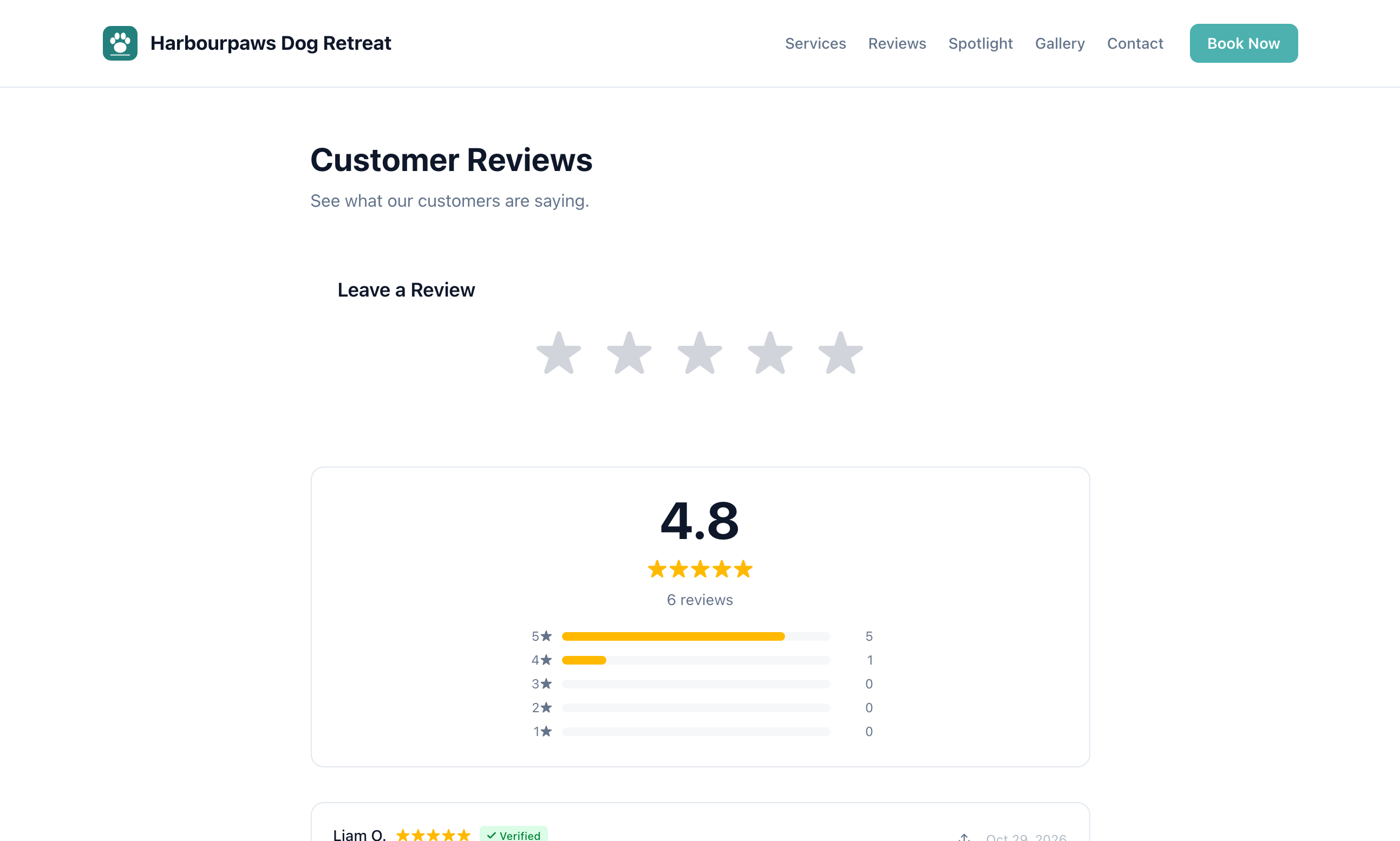
Your public reviews page shows your average rating, how many reviews you have at each star, and your most recent reviews with any replies. Anyone can leave a review there too. Share it from Share in the top bar, or see Reviews Setup.
Before and after photos
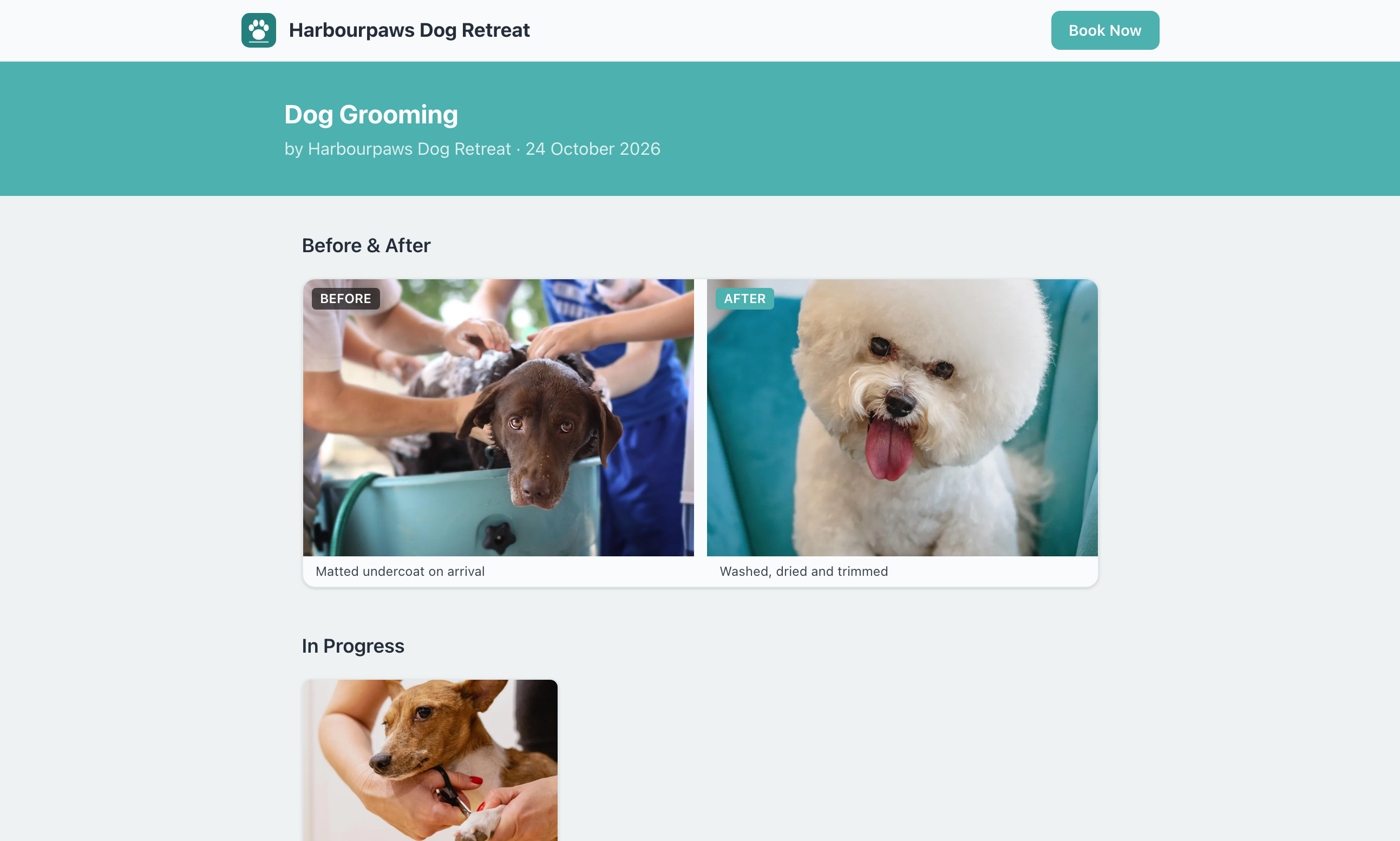
Photos you add to a booking appear in the job-completed email, which links to a gallery page for that booking: before and after pairs side by side, then any photos taken during the job, each with your caption.
Do customers need an account?
No. Every page opens from the link in their email. The links are long and private, so only the people you send them to can open them.
Why does my payment link say to contact me?
Online payment is not set up yet. Connect payments in Settings → Payments and the same link starts taking card payments.
Still have questions? Contact support