Help Center
Getting Started
Core Features
Payments & Analytics
Settings
Team & Scheduling
Integrations
White-Label
Bookings & Customers
Bookings & Customers
Cancel & Reschedule Online
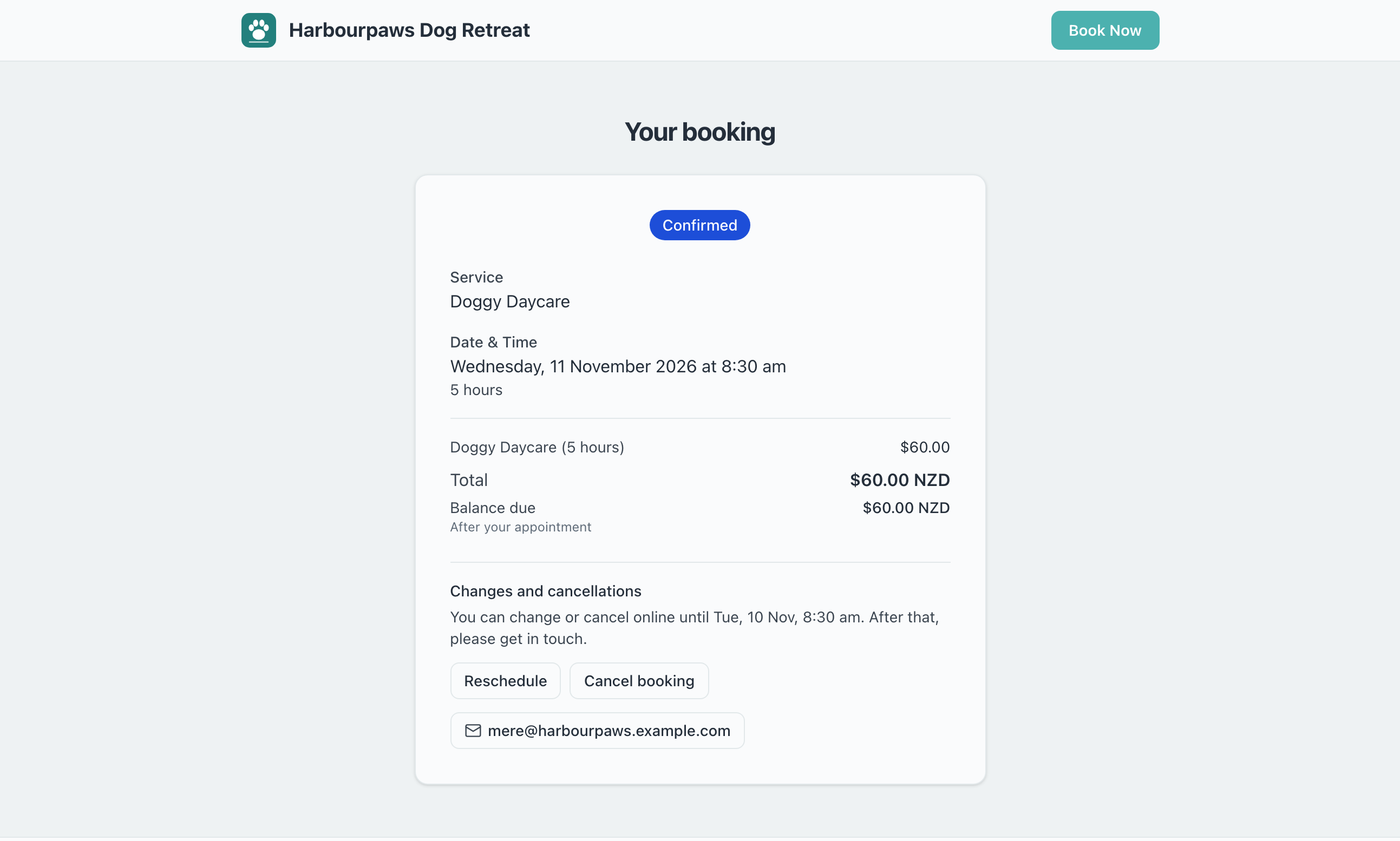
Customers move or cancel their own booking from their booking page, up to the notice you ask for.
Every booking has its own page, linked from the View your booking button in the confirmation and reminder emails. Until the notice you ask for, that page has Reschedule and Cancel booking buttons, so customers can sort out a change themselves instead of calling you.
Turn it on or off
It is on for every business. To change it, open Settings → Booking Policies and find Changes and cancellations. Click Save Settings after a change.
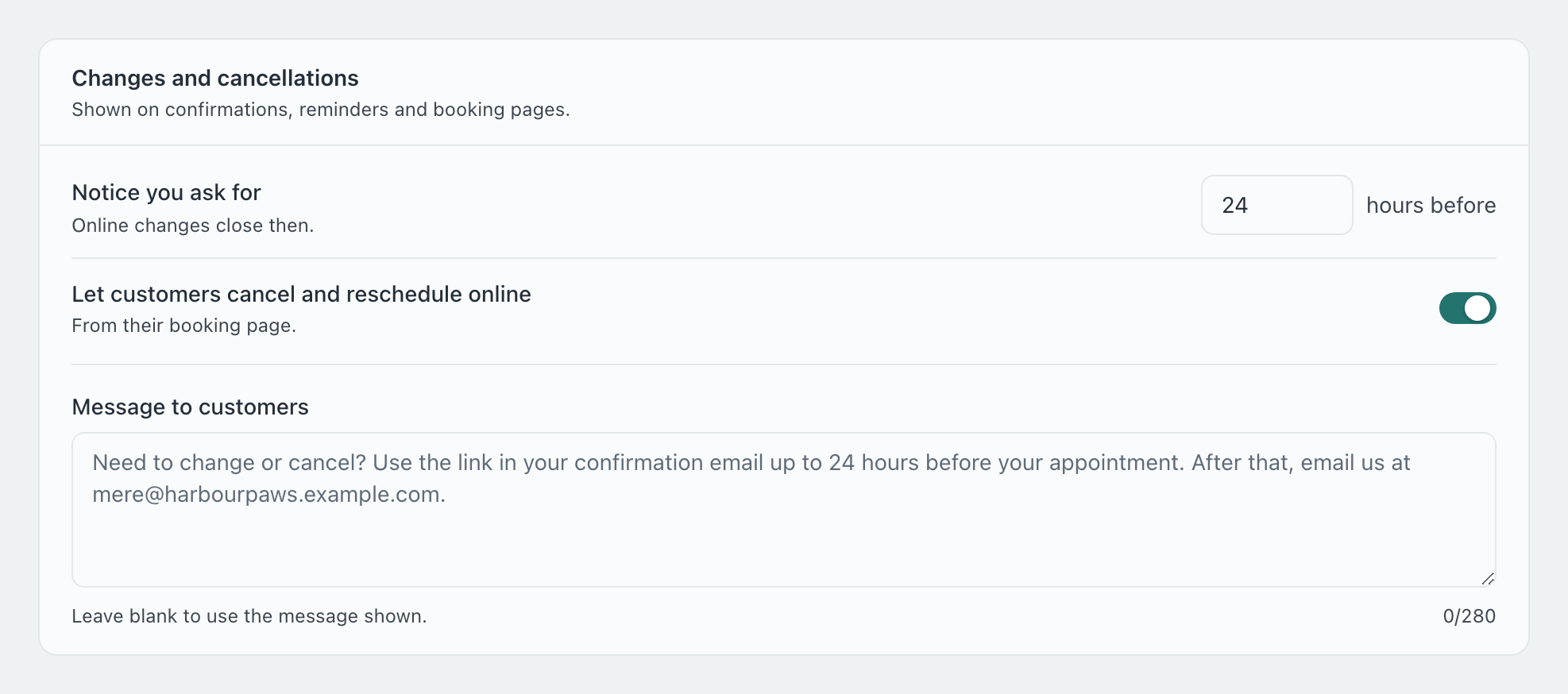
| Setting | What it does |
|---|---|
| Notice you ask for | Online changes close this many hours before the booking starts (24 unless you change it). After that, customers are asked to get in touch. |
| Let customers cancel and reschedule online | Shows the Reschedule and Cancel booking buttons. Off, the page shows your message and contact details only. |
| Message to customers | The sentence on emails, the last step of your booking form and the booking page. Leave it blank and it is written for you from your notice and phone number. |
What your customer sees
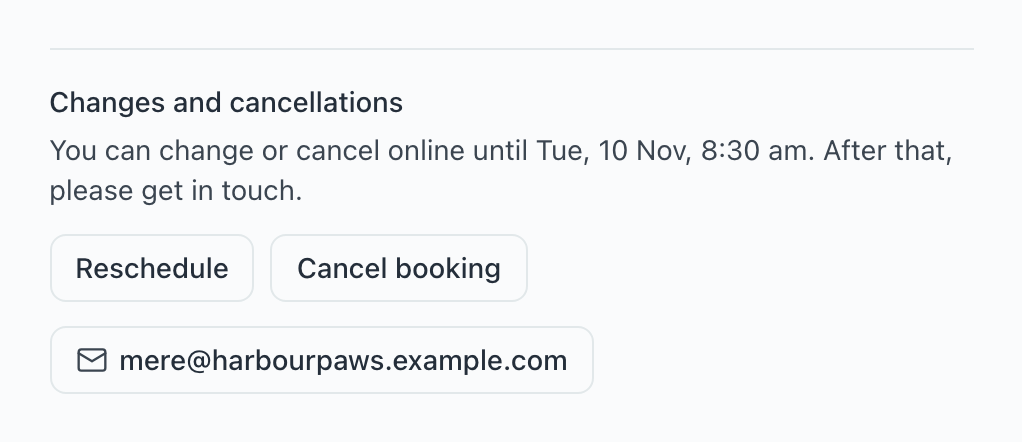
Under Changes and cancellations, the page says until when they can change online, in your workspace’s time zone, with your phone and email underneath.
Rescheduling
Reschedule
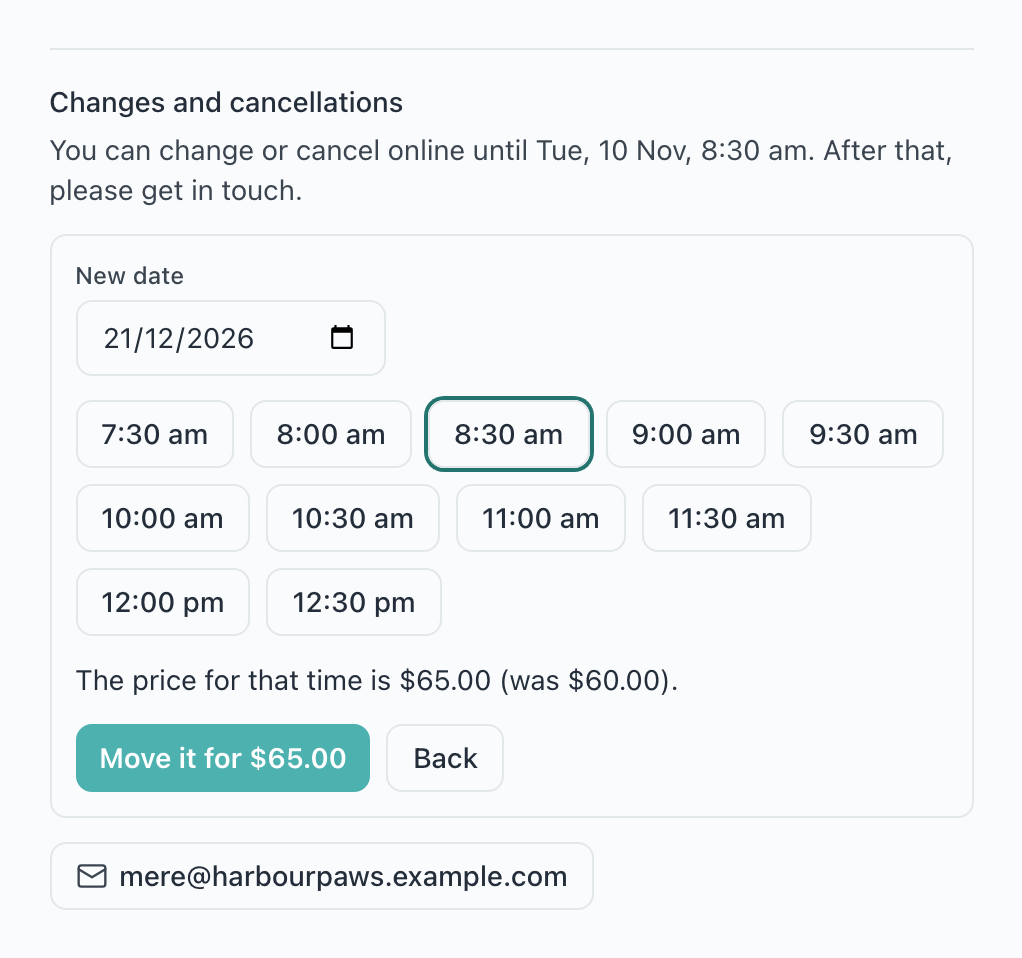
The customer clicks Reschedule and picks a new date.
Pick a time
Only free times show, for the same service, team member, location and length as the booking.
Move to this time
The booking moves, a new confirmation is emailed, and you are told.
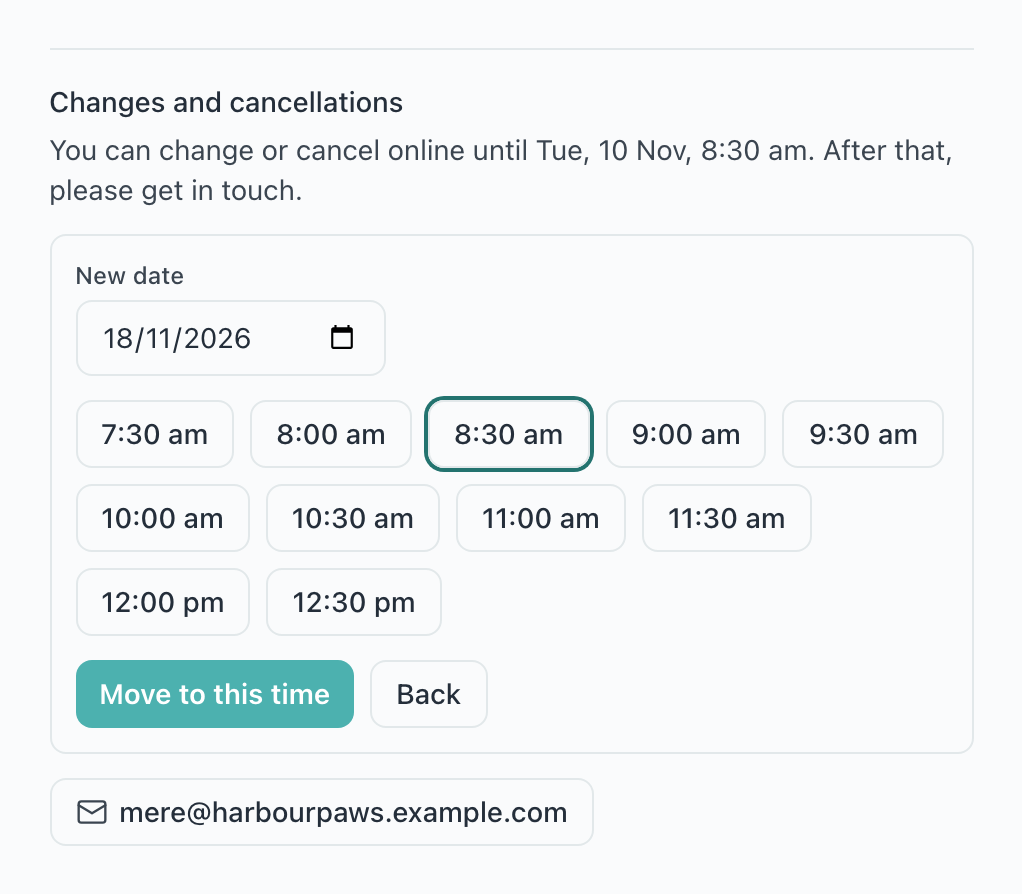
A new time follows the same rules as a new booking: your hours, closed dates, how far ahead people can book, team availability and capacity.
When the new time costs more or less
The booking is priced again for the new time, with the same answers and add-ons, so seasons and time-of-day prices apply. If the total changes, the customer sees the new price and confirms it before anything moves.
Cancelling
The customer clicks Cancel booking, can add a reason, and confirms with Yes, cancel it.
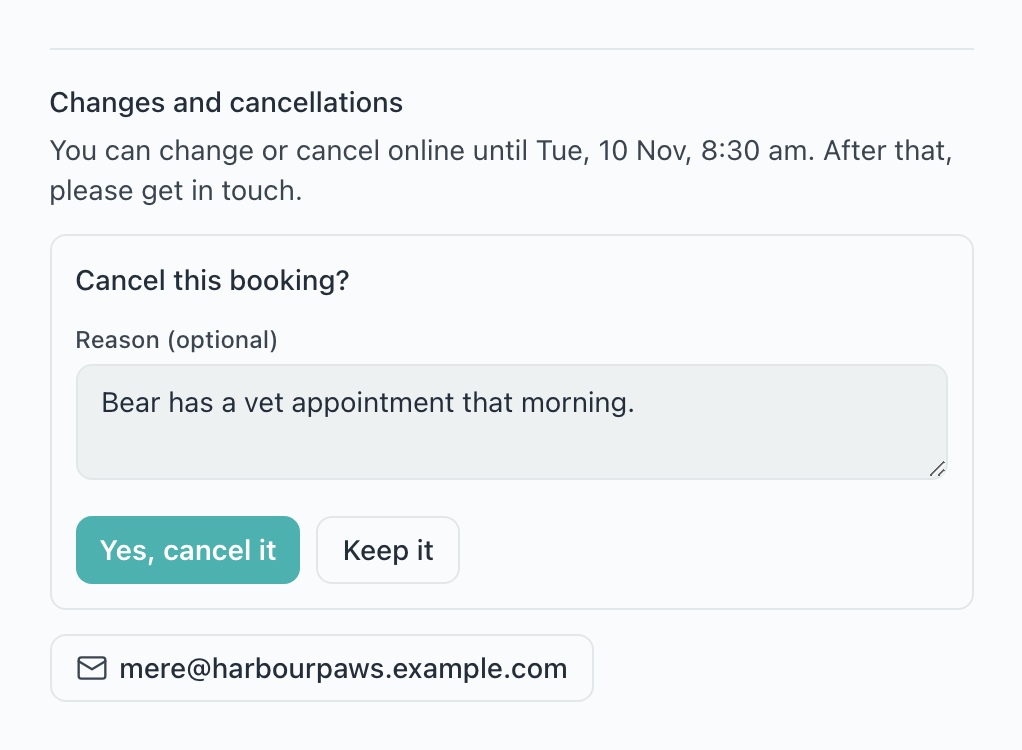
The booking is marked cancelled by the customer, its time is free again, a voucher they used can be used again, and it leaves your Google Calendar if you have it connected. Nothing is refunded automatically: if they paid anything, your notice says Refund due with the amount, and their email says you will be in touch about it.
Bookings you confirm yourself
When a booking is still waiting for you to confirm it, or your booking form is set to confirm bookings yourself, a reschedule is sent to you as a request. Nothing moves: you get the time they asked for and a link to the booking, and they are told you will confirm. Move it from the booking in Bookings.
What you are told
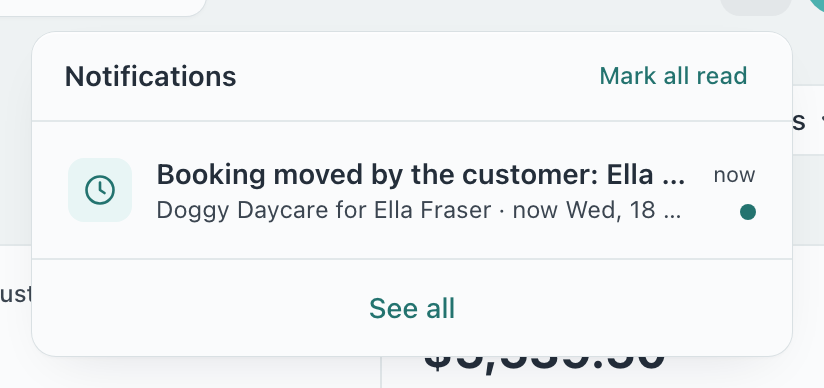
Each change shows in your bell and is emailed to you: Booking moved by the customer (with the old and new time, and the new price if it changed) or Booking cancelled by the customer (with their reason). Choose what is emailed in Settings → Notifications.
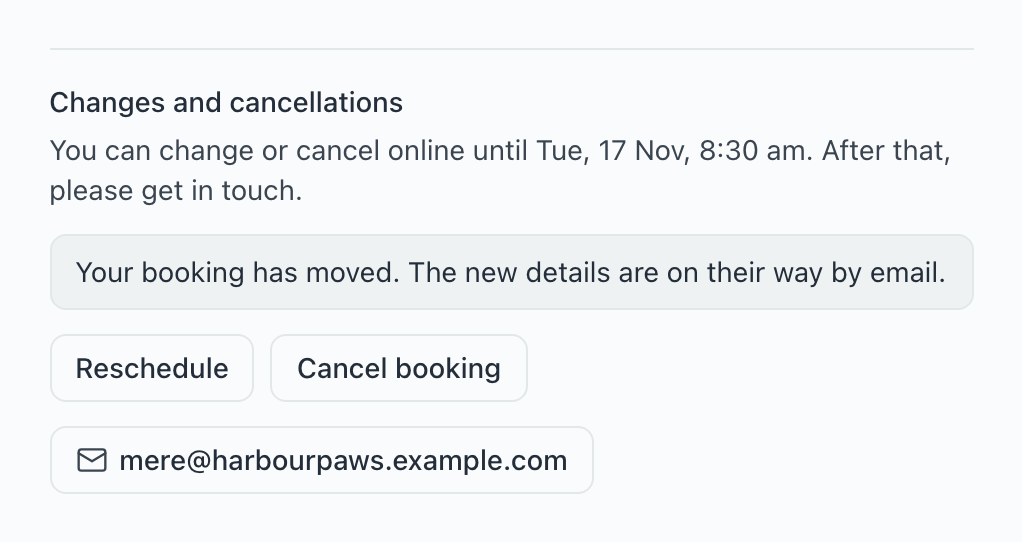
Once the move is done, the customer sees it straight away, and can change it again until the notice runs out.
Which bookings can be changed online
| Booking | Cancel online | Reschedule online |
|---|---|---|
| Confirmed, or waiting for your confirmation | Yes | Yes (a request, if you confirm bookings yourself) |
| Waiting for payment | Yes | No: they get in touch |
| Overnight stays | Yes | No: they get in touch |
| Inside your notice | No: they get in touch | No: they get in touch |
| Completed, cancelled or no-show | No | No |
| Orders (no appointment time) | No | No |
Is there a late-cancellation fee?
No. Inside your notice the buttons go away and customers are asked to call or email you, so a late change is always yours to decide.
Can someone else change the booking?
The page is reached only through the private link in the customer’s emails. Anyone with that link can see the booking and change it, as they could by calling you with its details.
Does it work with my own website or Wix and WordPress?
Yes. The link in the emails always opens the booking page, wherever the booking was made.
What do the emails say about changes?
With the buttons on, confirmations and reminders tell customers to use the View your booking button up to your notice, and to call you after that (or email you, if you have no phone number on Settings → General). A message you write in Booking Policies replaces it.
Still have questions? Contact support